
Page Views

Creating and Managing Page Views

S
Written by Sabrina Vincent
Updated over a week ago

Page Views impact every section of Surefront that displays Product data. At different times of the Product Lifecycle there will be different specifications that are more important than others to see. With Page Views you can customize where that information is displayed. When you first access the Page Views there will be Standard Fields in the Default View. Standard Fields cannot be changed in any way, to make the system more compatible with your team's terminology and for fields specific to your products, there is the option to create User Defined Fields.

Let's start by creating a new Page View:

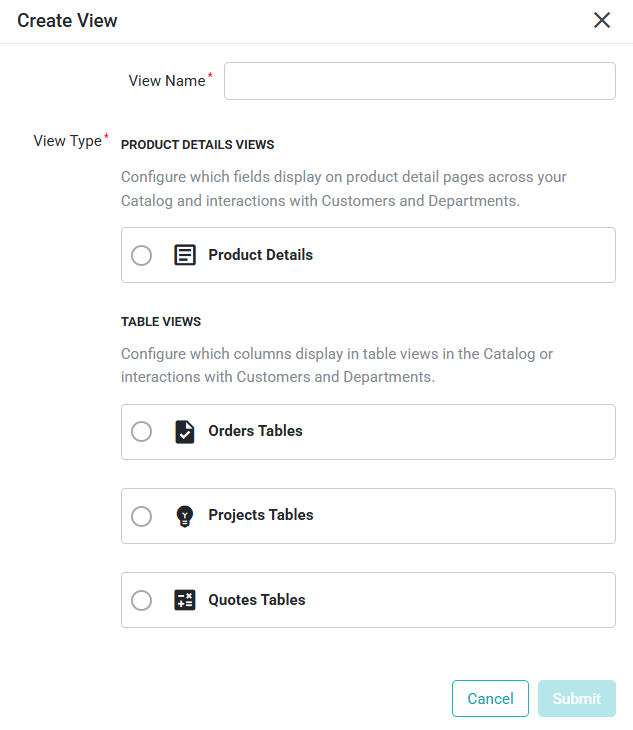
  • The Create Button - Creates new Page Views and requires a selection for the type of Page View it's going to be.

The Page Views are separated into:

  • Product Details Views - Ordered by ascending order 0-9 and A-Z, these views affect the information displayed along with the Product images. These Page Views can be applied to specific Categories of the Catalog or to All Categories. Which can be very useful when a specific category has extra fields that do not apply to every category.

  • Table Views - Ordered by ascending order 0-9 and A-Z, these views allow you to see at a glance selected fields in a table. Each field will be able to sort each column.

Both types of Page Views allow for multiple Page Views to be applied to the same category. This allows for a default page view to be applied, where universal fields appear at the top of the Page view, and then specific Page views can be associated with the corresponding categories they apply to.

The only View that is the exception to this is the Catalog Table View, where it is only 1 table view that can be applied.

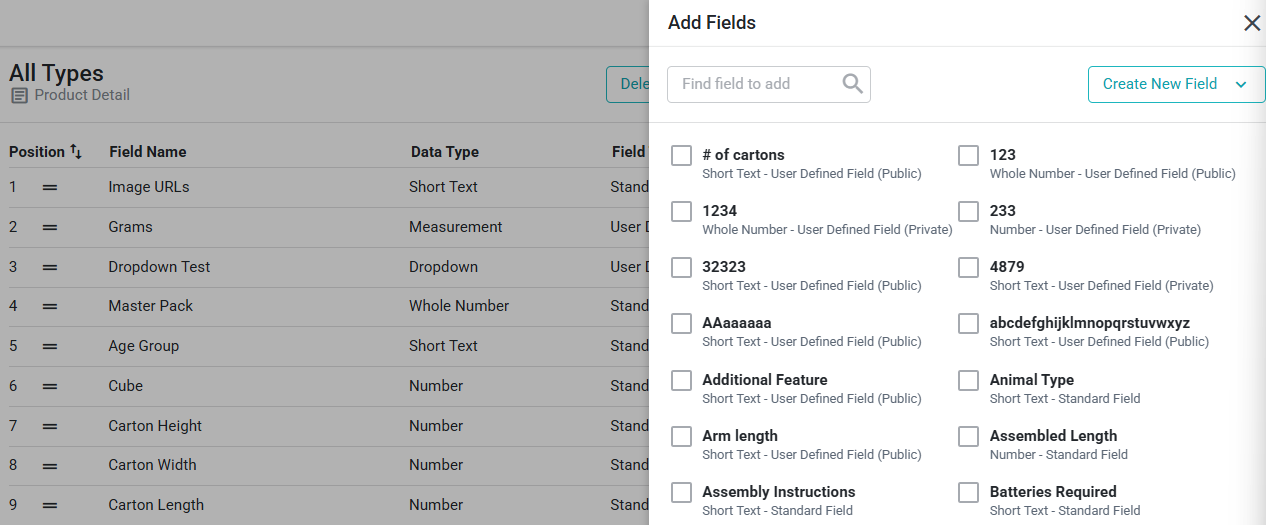
To create new fields select the Add Fields button, this will open up a side pane that lists all current fields not applied to the Page View and gives you the option to create new fields.

To Add fields, select the checkbox next to the field name and select Apply on the bottom right. You can click and drag the fields to rearrange where they appear in the Page View (indicated numerically in the Position column)

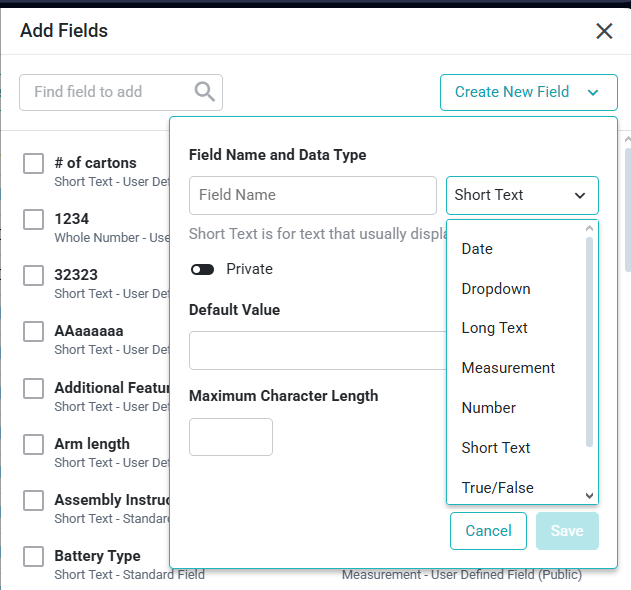
To Create New Fields, select the Create New Field button, and a small window will appear underneath it. Components for a New field are:

  • Field Name - Must be unique from other field names

  • Data Type - This will indicate how the data will be displayed and includes the following data types:

    • Date - displays data as YYYY-MM-DD

      • While uploading YYYY-MM-DD or MM-DD-YYYY are both acceptable formats

    • Dropdown - A single selection field where you can customize the options

      • Extremely useful for consistent and reportable files

    • Long Text - A larger text field, all characters are allowed

    • Measurement - A number field with values to customize the type of measurement:

      • There are 5 different types of Measurement:

        • Area - can be in square inches/feet/yards/millimeters/centimeters/meters

        • Capacity - can be in fluid ounces, pints, quarts, gallons, milliliters, centiliters, deciliters, liters

        • Length - can be in inches, feet, yards, millimeters, centimeters, or meters

        • Mass/Weight - can be in ounces, pounds, grams, kilograms, tons, short ton, long ton

        • Volume - can be in cubic inches/feet/yards/centimeters/meters

      • The default measurement type (Imperial/Metric) shown in the Product Details page is adjusted in the Company Information page

        • There is also a toggle on the Product page to switch between Imperial and Metric units

    • Number - Supports any numeric value, including decimals

      • Does not support leading zeros

    • Short Text - A smaller text field, all characters are allowed

    • True/False - A Boolean field that allows for True/False responses only

    • Whole Number - A number field that only accepts whole numbers

  • The Private Toggle - Allows you to toggle on/off a field's visibility to external parties. If a field is specific or confidential to your company, you can toggle it to Private, then when collaborating with external companies, the field stays visible in lists to internal members of your team but not the external members (these fields will appear with a slightly purple color)

  • Default Value - When an item is created, if this field is not filled out, the default value will populate

  • Maximum Character Length - Sets a limit on the characters that can be in the field (useful parameter for integrations to ensure data consistency)

Once the field is created, select the checkbox next to the field name, then Apply down at the bottom right to add the field to the Page View.

Did this answer your question?