

Administration
Customer Connections is where teams review linked buyers, unlinked customer workspaces, and connection requests. An unlinked customer record is not the same as a verified company connection.
Review connection requests and customers
Open Customer Connections from Administration. The page separates customer workspaces into Linked and Unlinked sections and provides a way to review pending connection requests.
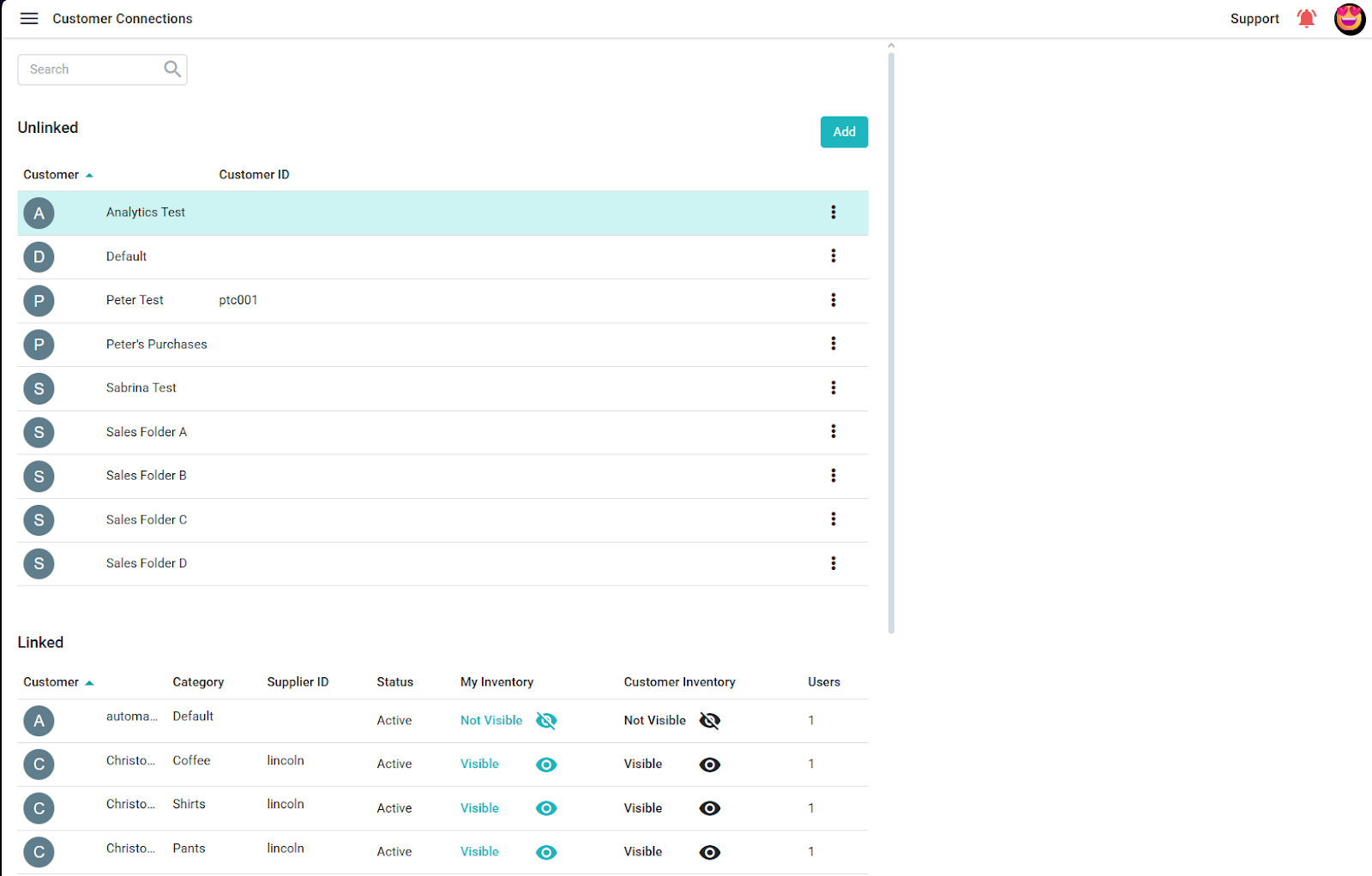
A buyer administrator sends the company connection invitation from Supplier Accounts. A member of your administration team can review and accept an incoming request from Customer Connections. When the company is linked, open its workspace to review the assigned team members and the collaboration areas available to that account.
Understand unlinked customer records
Use the Unlinked section to manage sales-folder records for customers without a verified Surefront connection. The current Add Customer form collects a required Customer Name; Customer ID and Workspace are also shown. Creating this record does not establish an authenticated company connection. For a real company link, ask the customer administrator to send an invitation.
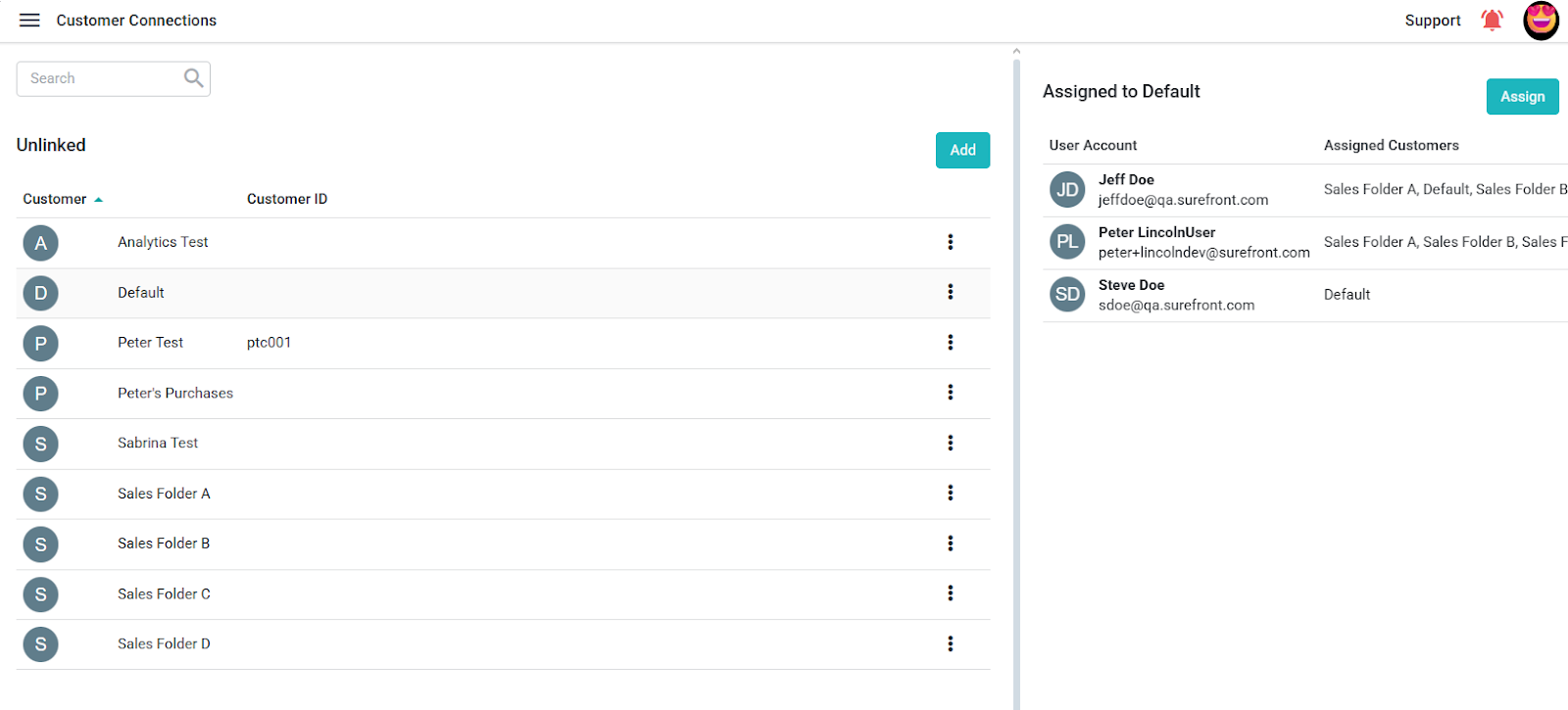
Access to quotes, orders, inventory, and messaging can differ between linked and unlinked workspaces. Check the controls available in the selected workspace and confirm access with an administrator before promising a specific collaboration feature.
