
Platform Overview
Use tags to group selected products without creating another product field. Tags can be applied in product workflows; manage tag names from Catalog.
Apply or remove tags
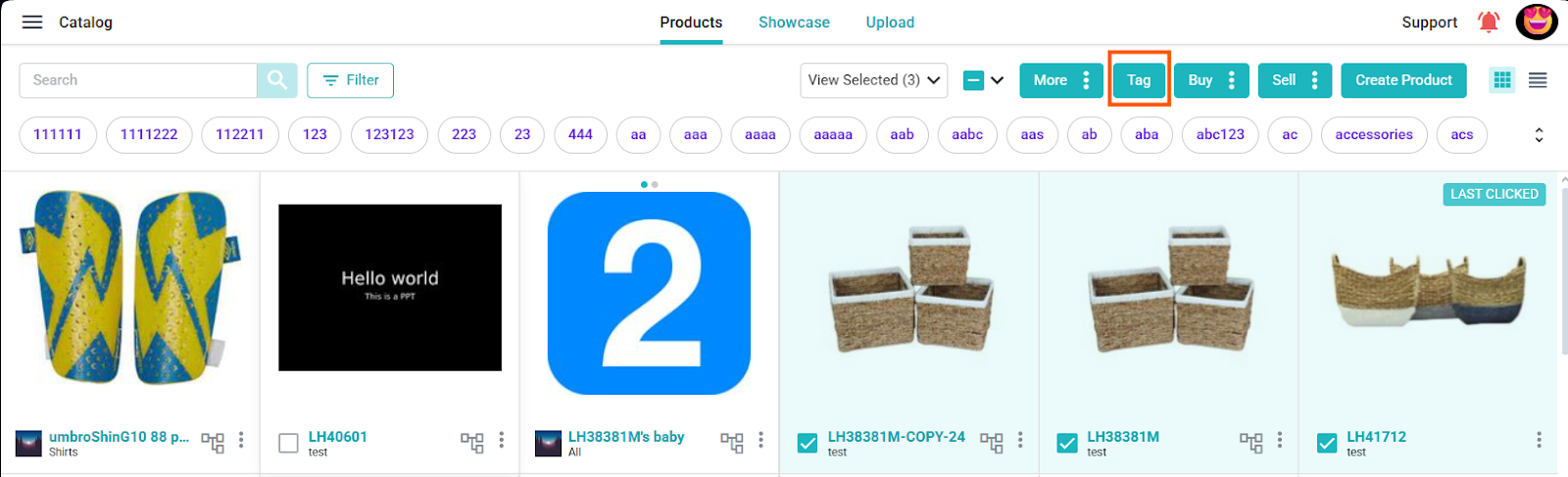
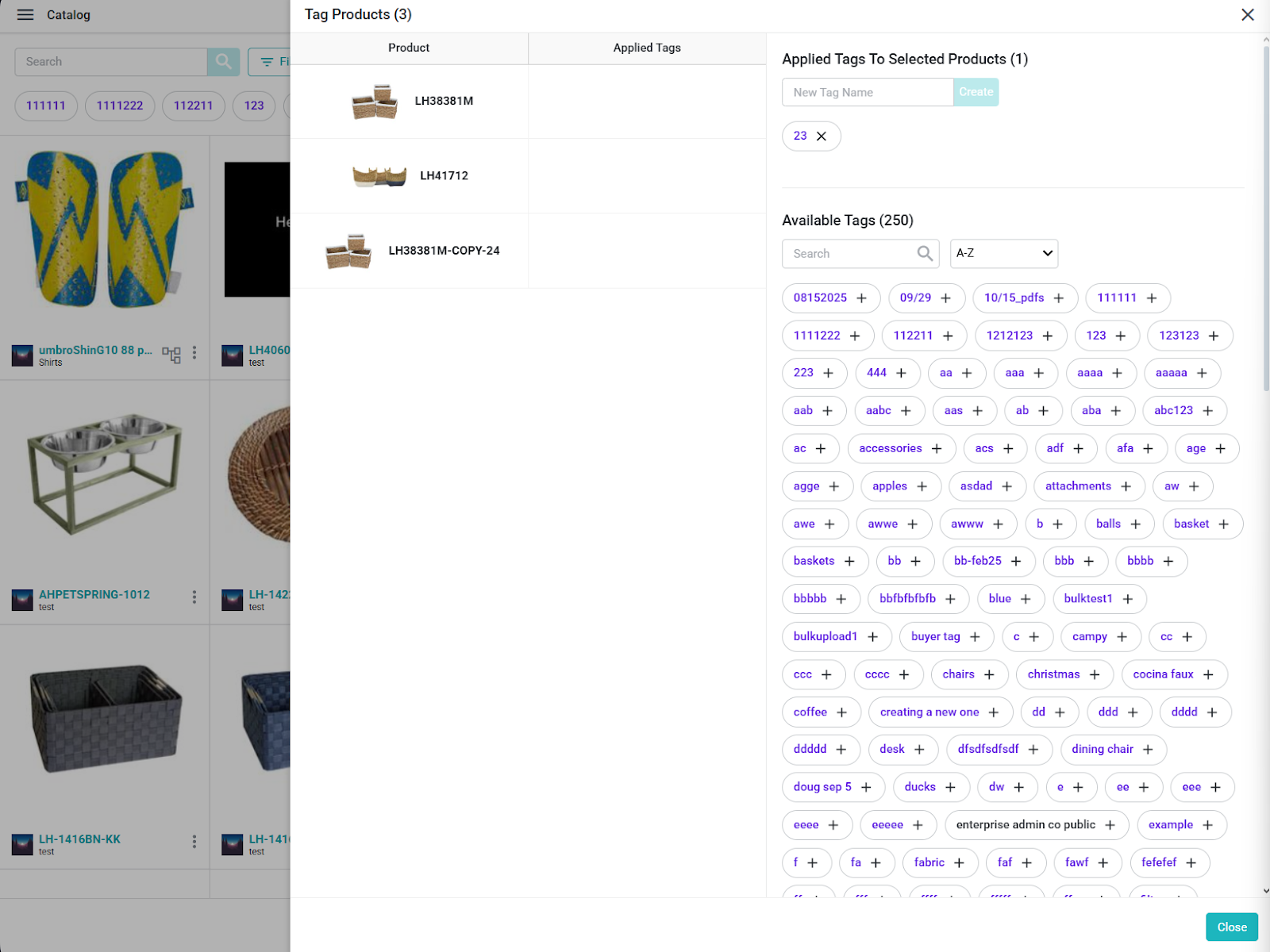
In Catalog, select one or more products and choose Tag from the available product actions. Review the current tags, then add an available tag to the selection or remove an applied tag as needed.
Tags may be available from other product-selection workflows as well. The current product screen shows an Add Tags control; the Save to Catalog flow can also ask you to add tags to the products being saved.
Create or manage a tag
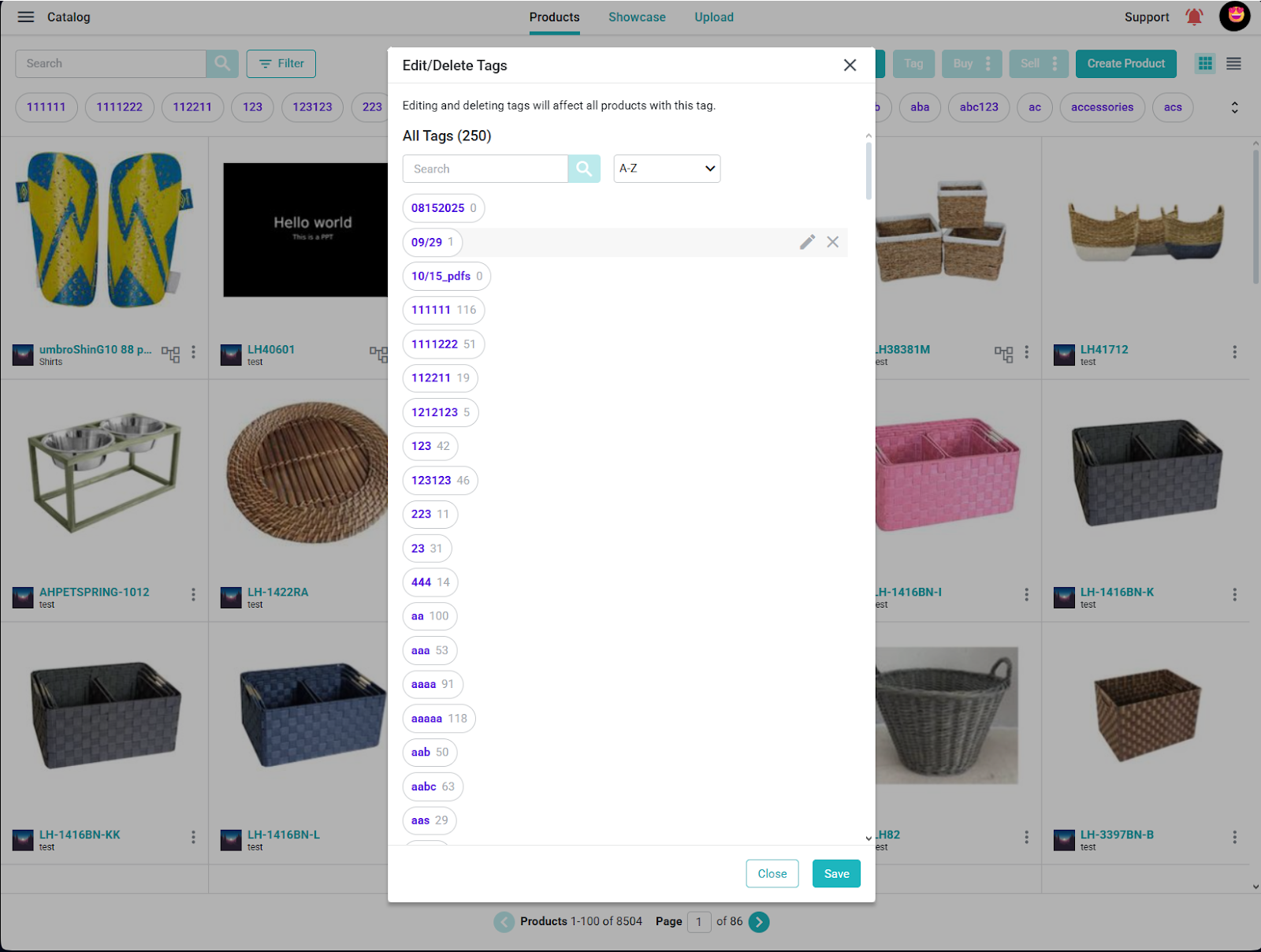
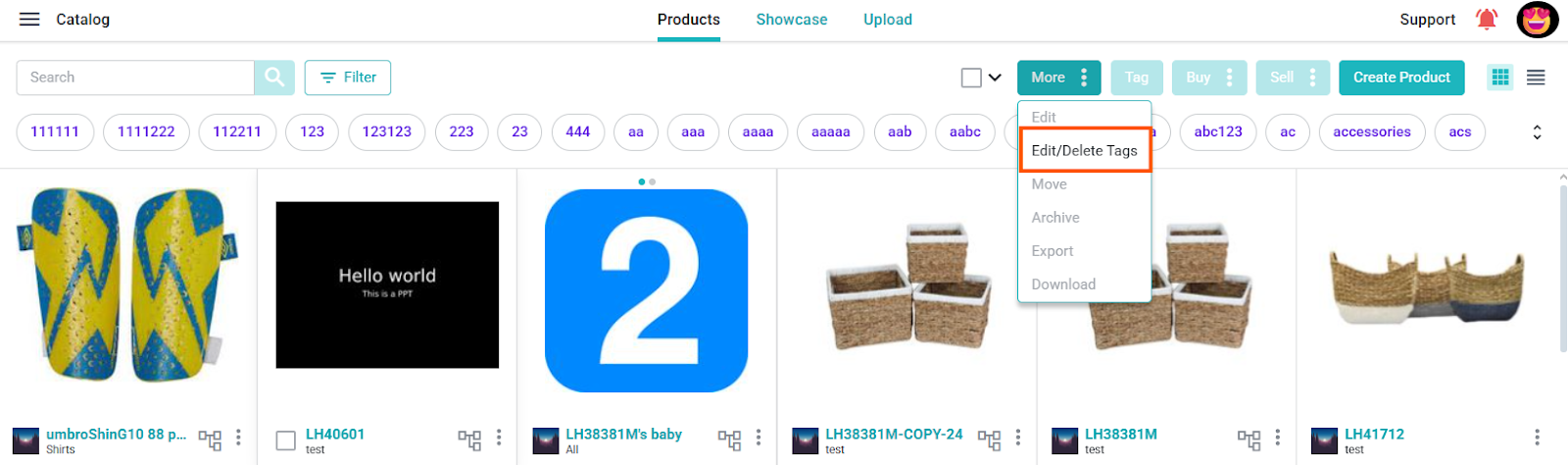
To create a tag, choose Create New Tag, enter a name, and review the available visibility setting before creating it. Use the Catalog tag controls to manage existing tags where your permissions allow it.