
Analytics

Utilize in-platform analytics to quickly look at the progress of different Projects, Quotes, and Orders

S
Written by Sabrina Vincent
Updated over a month ago

In Surefront, for both the CRM and PLM portions of the software, having a quick view of the progress of Quotes or Orders is essential when trying to hit goals or target metrics. The Analytics feature allows you to create simple and powerful visuals.

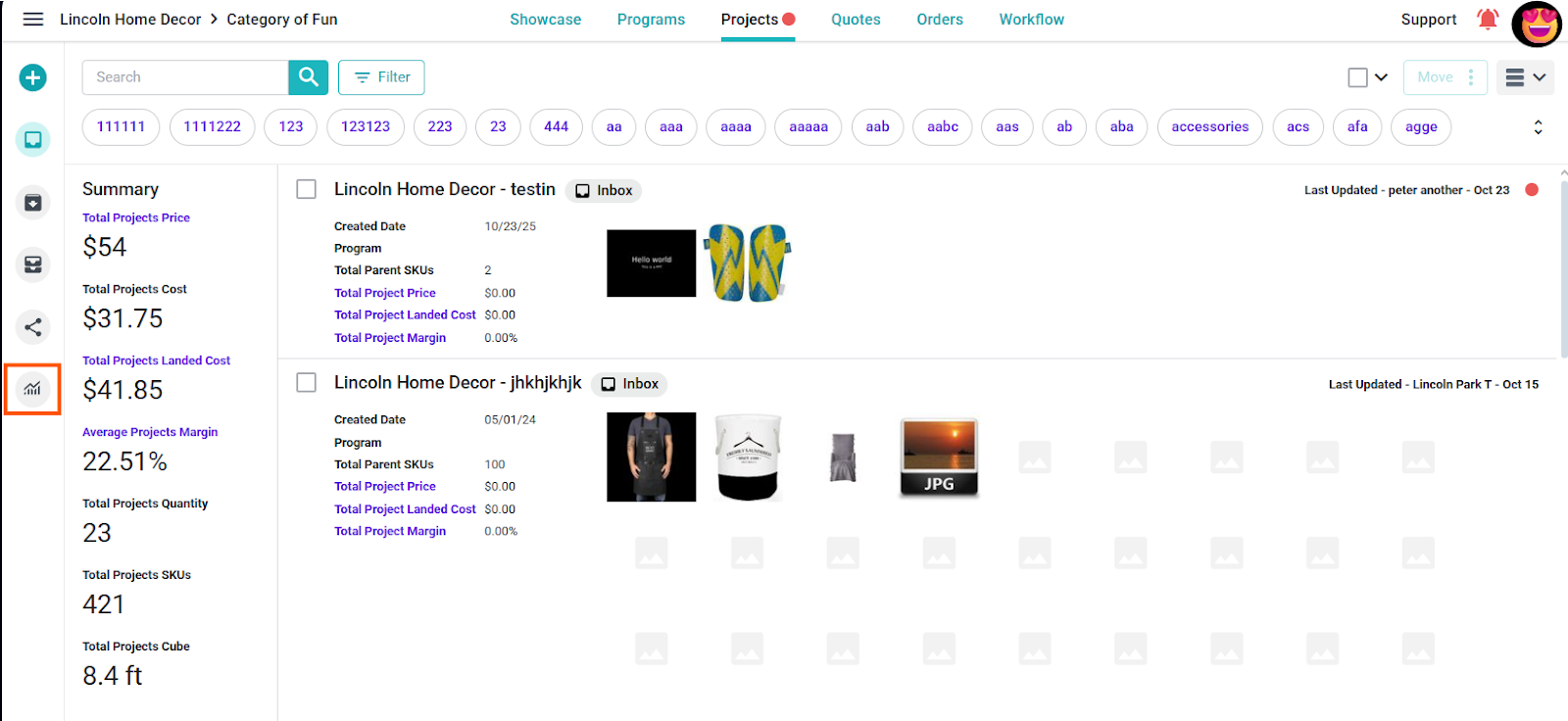
To begin, navigate to your CRM or PLM, and on the left-hand side, you will see the Analytics button at the bottom of the options.

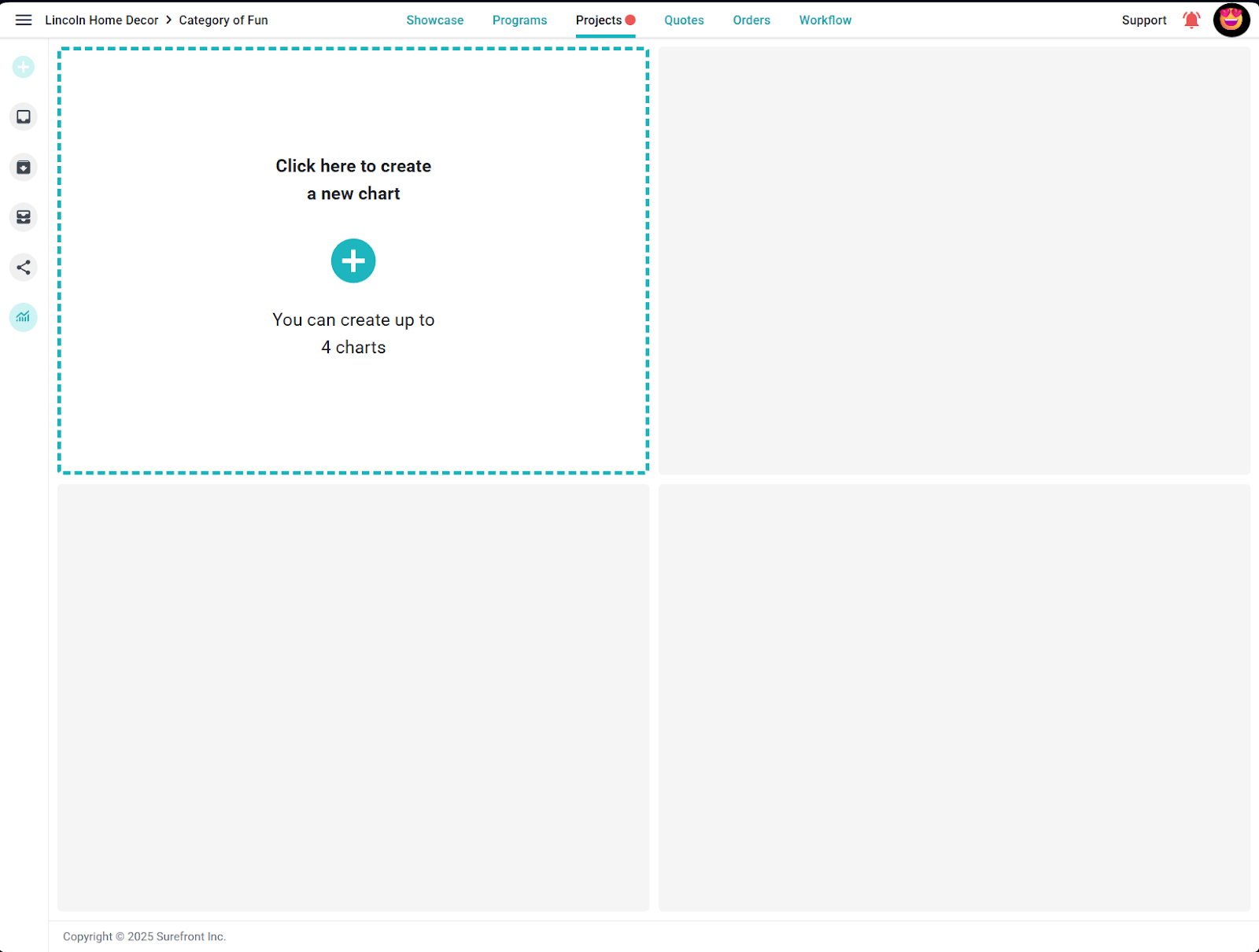
After selecting the Analytics button, the following screen will appear:

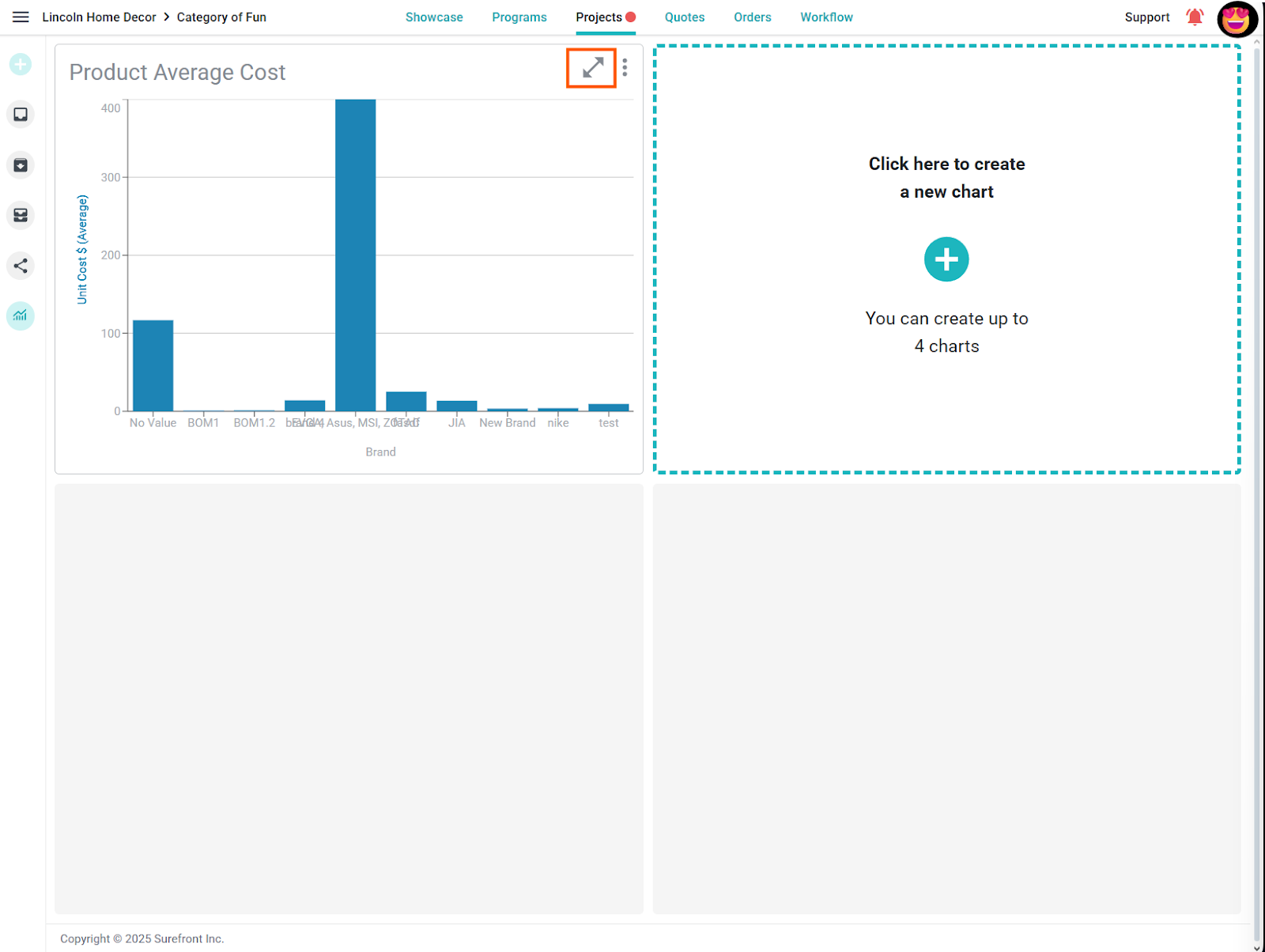
As you can see, up to 4 charts can be created and viewed. These charts will be specific to the workspace created and will automatically refresh with new data as applicable. To create a new chart, press the plus button:

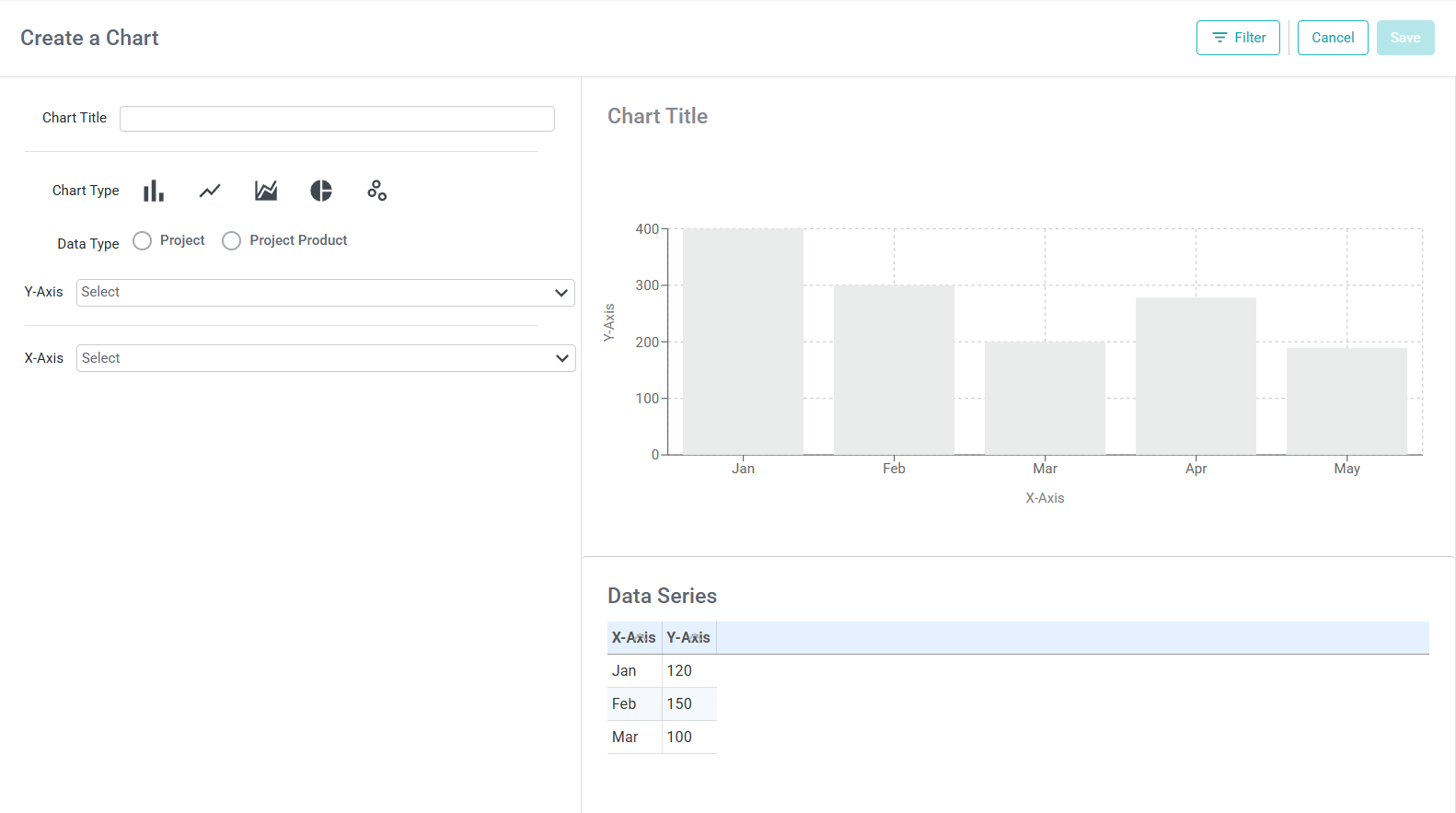
On the left is the chart building tools, while the right shows how the chart will look and a table of the data being referenced.

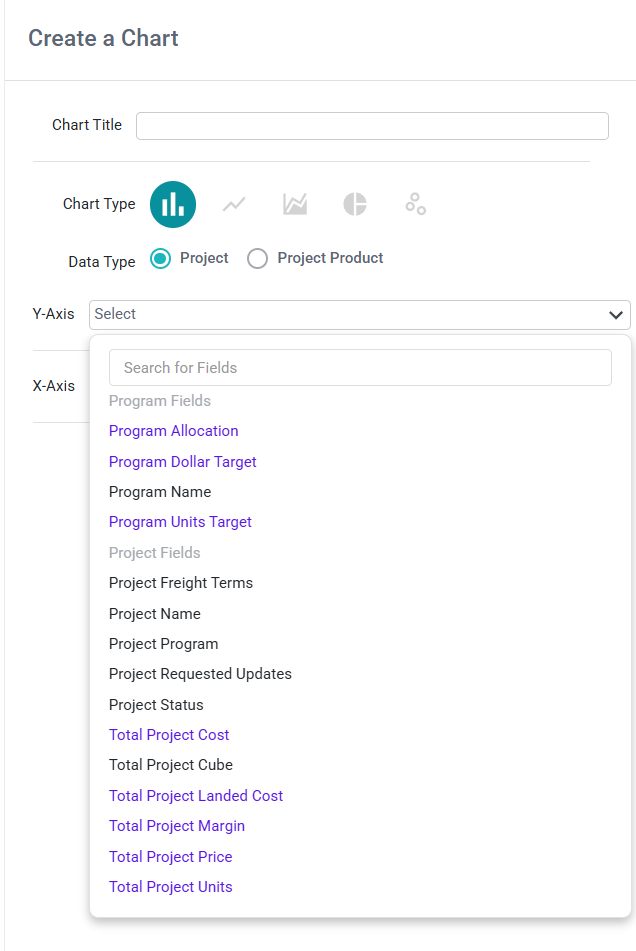
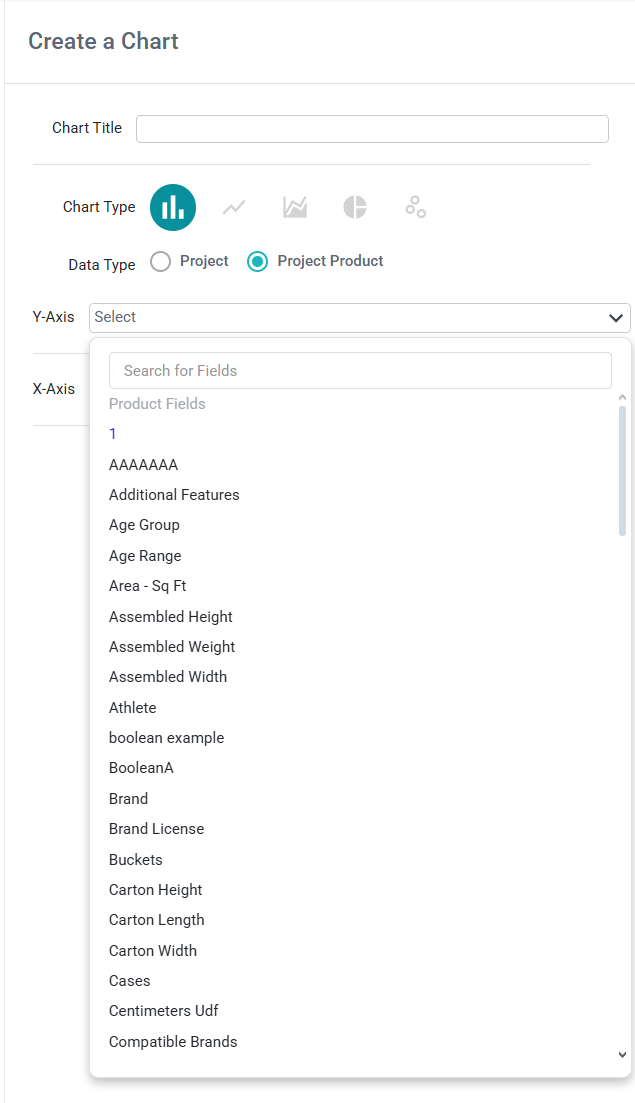
When building a new chart, you must first select the Chart Type and the Data Type:

  • Chart Types - Bar, Line, Area, Pie, and Scatter

  • Data Types - Project level, and Project Product

    • Project - The highest level of the hierarchy currently available, returns data points specific to Program and Project fields

    • Project Product - refers to all fields associated with the Product (both standard and user-defined fields can be utilized), in addition to Project and Program fields

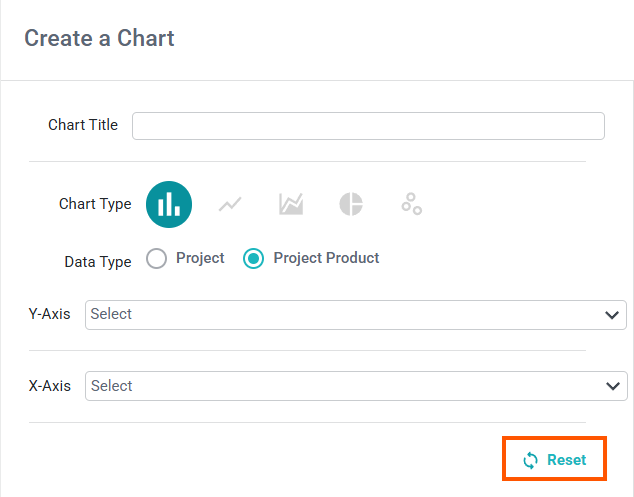
If you selected the wrong data or chart type accidentally select the Reset button to begin again.

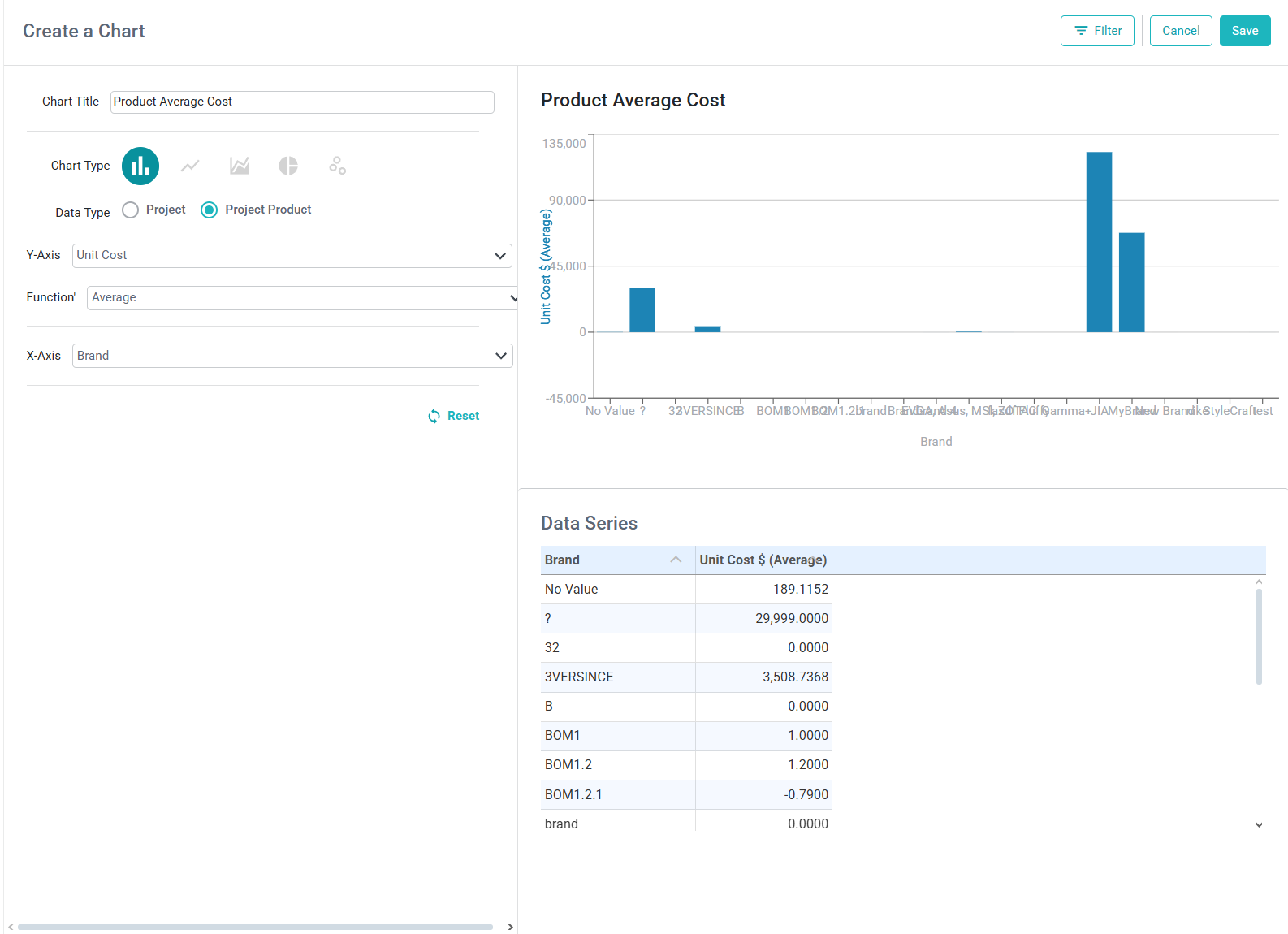
If your chart has missing data like the following example, be sure to utilize the Filter to exclude missing data.

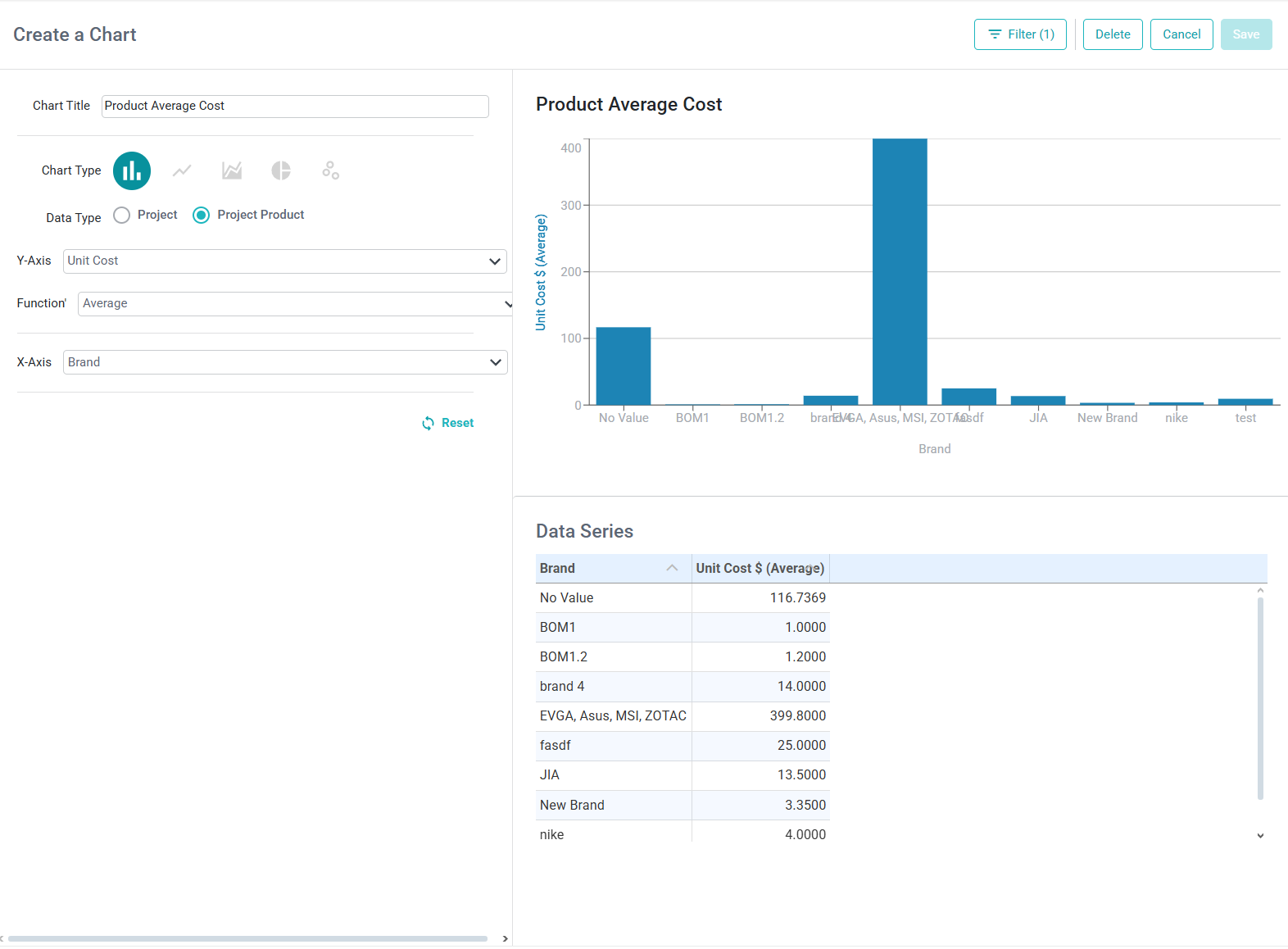
Excluding all Products that don’t have a Unit Cost will give us:

The chart is still a bit clustered, but once we hit save, we can expand it to take a better look at each of the columns

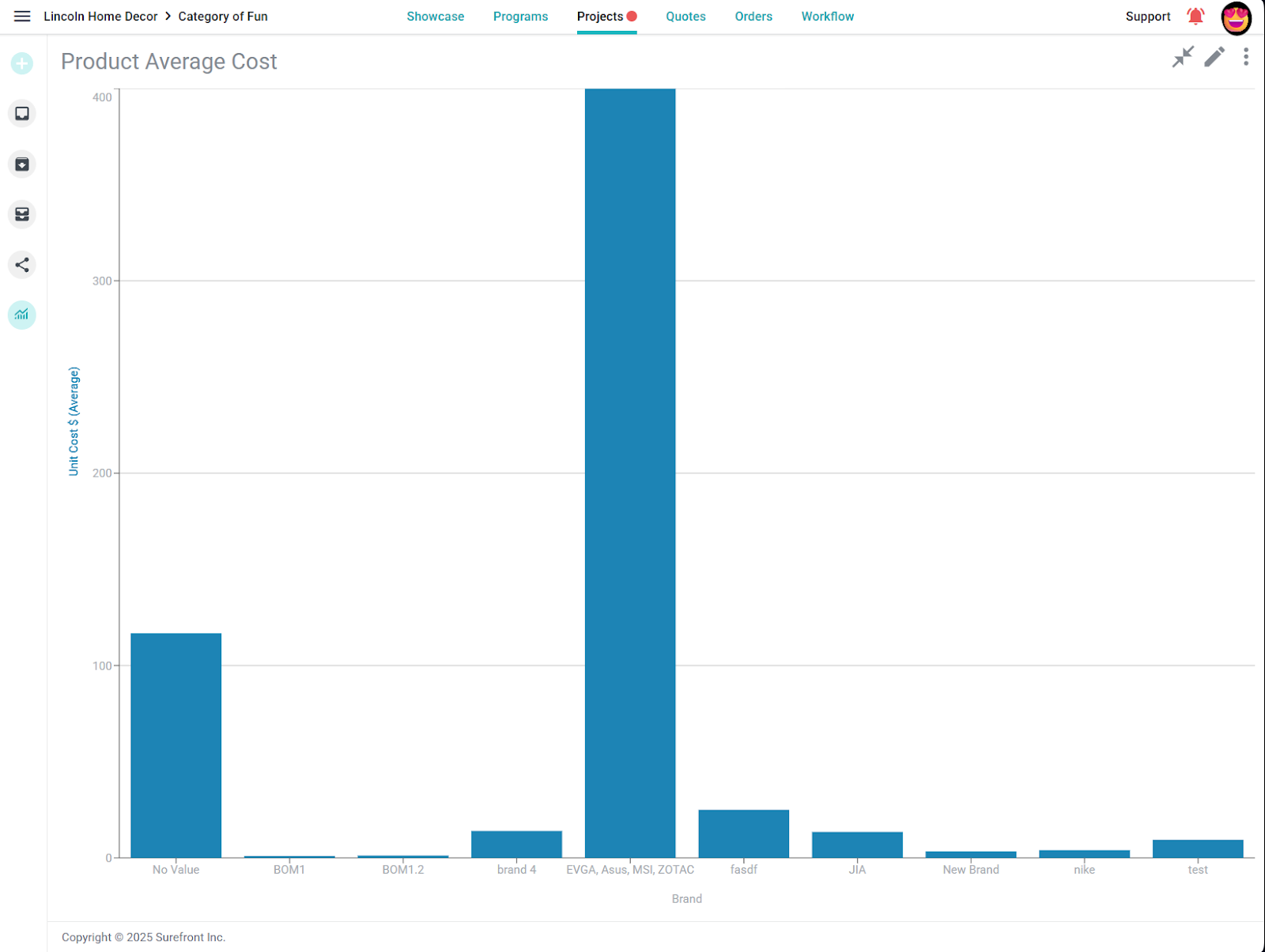
Now we can see each of the categories on the X-axis more clearly, and we can minimize this view back into the 4 chart view just as easily. If you need to edit a chart, select the pencil icon, or to delete a chart, select the 3-dot menu and select delete.

Did this answer your question?