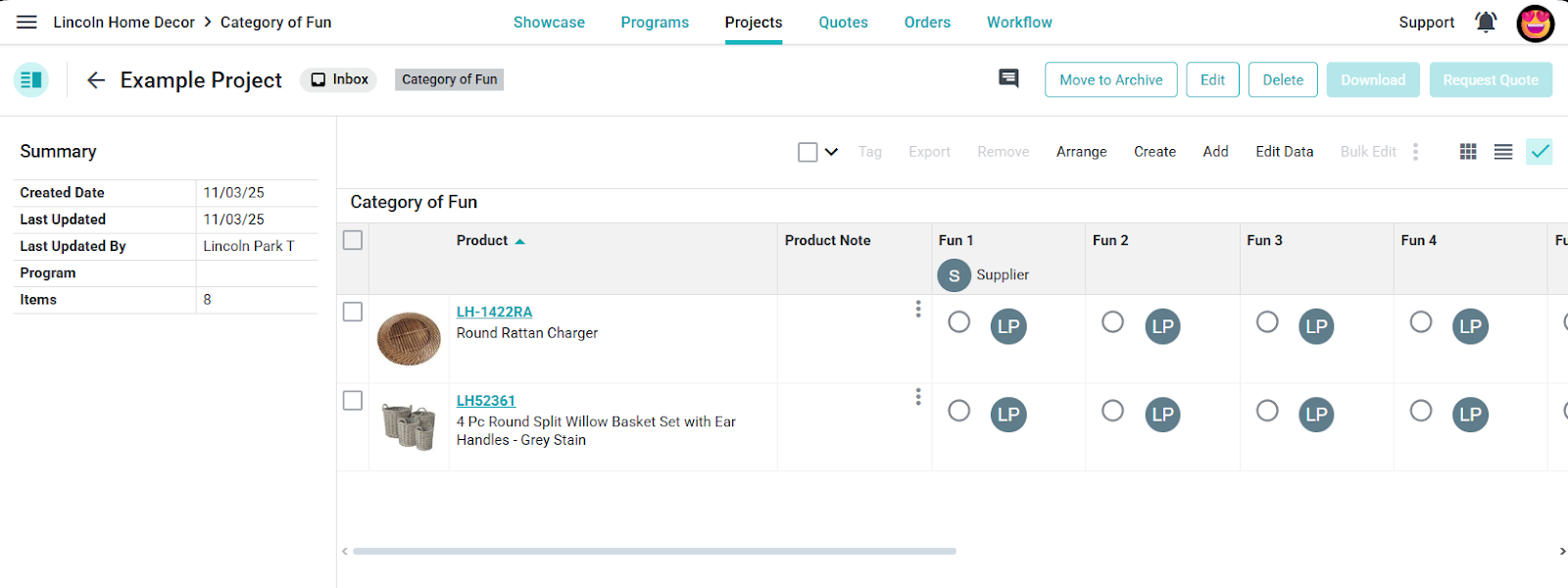

Buying/Creating - PLM
Create a project from the PLM Projects list, then add catalog products or create products in the project workspace.
Create a project
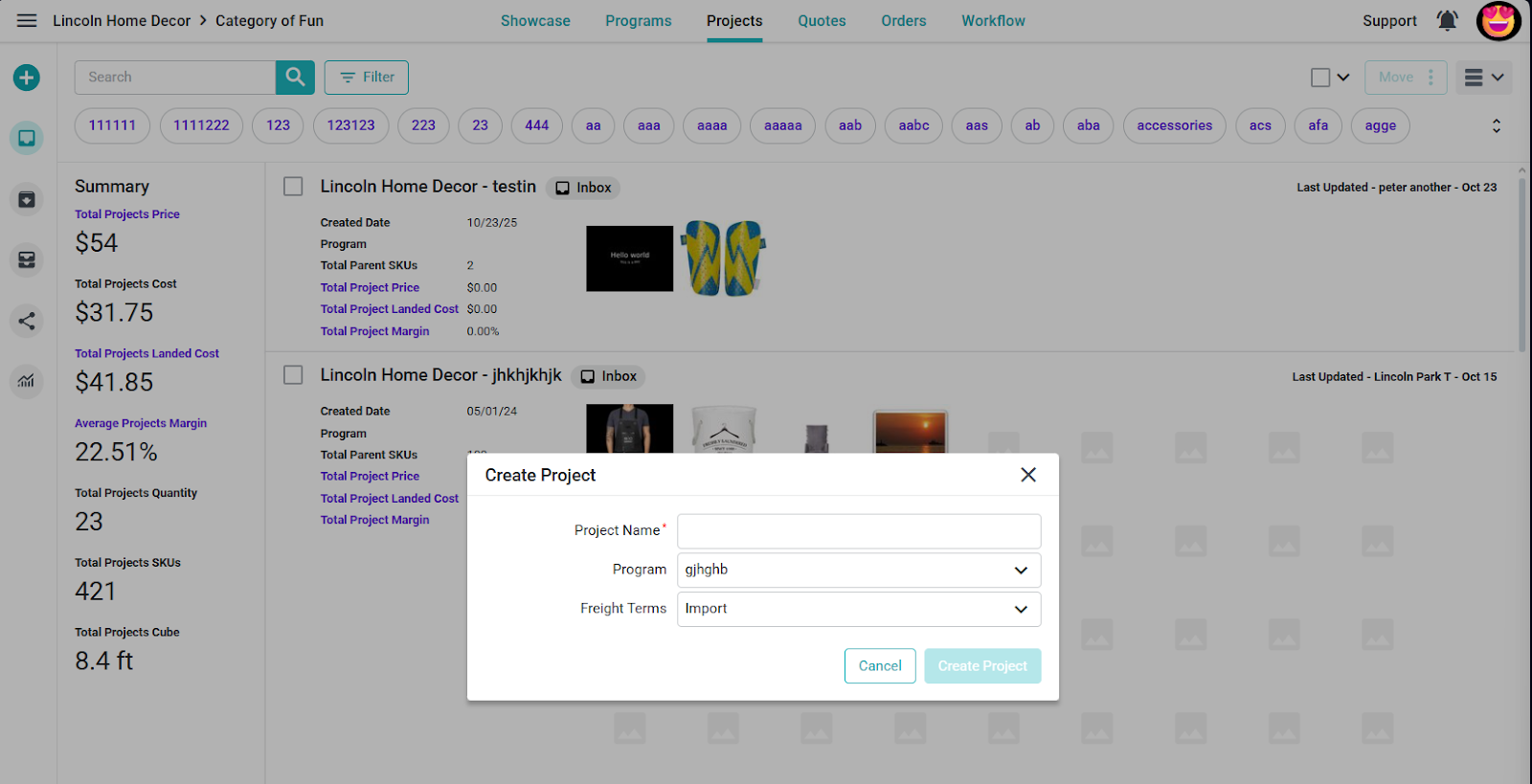
In Product Lifecycle Management, choose a category, open Projects, and select Create. Enter the required Project Name and Category. Choose a Program if needed and review Freight Terms, then select Create Project when the required fields are complete.
Add products to the project
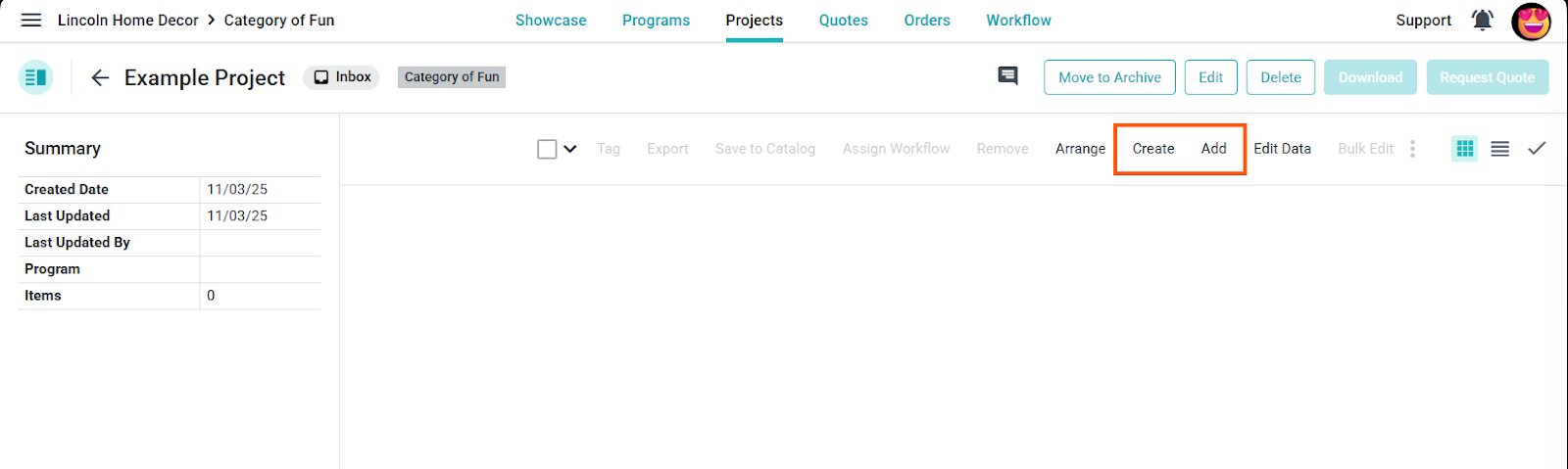
In the project workspace, select Add to choose catalog products. Search or filter the catalog list, select the products, then use Add Products when enabled. Select Create to enter a new product in the project workspace.
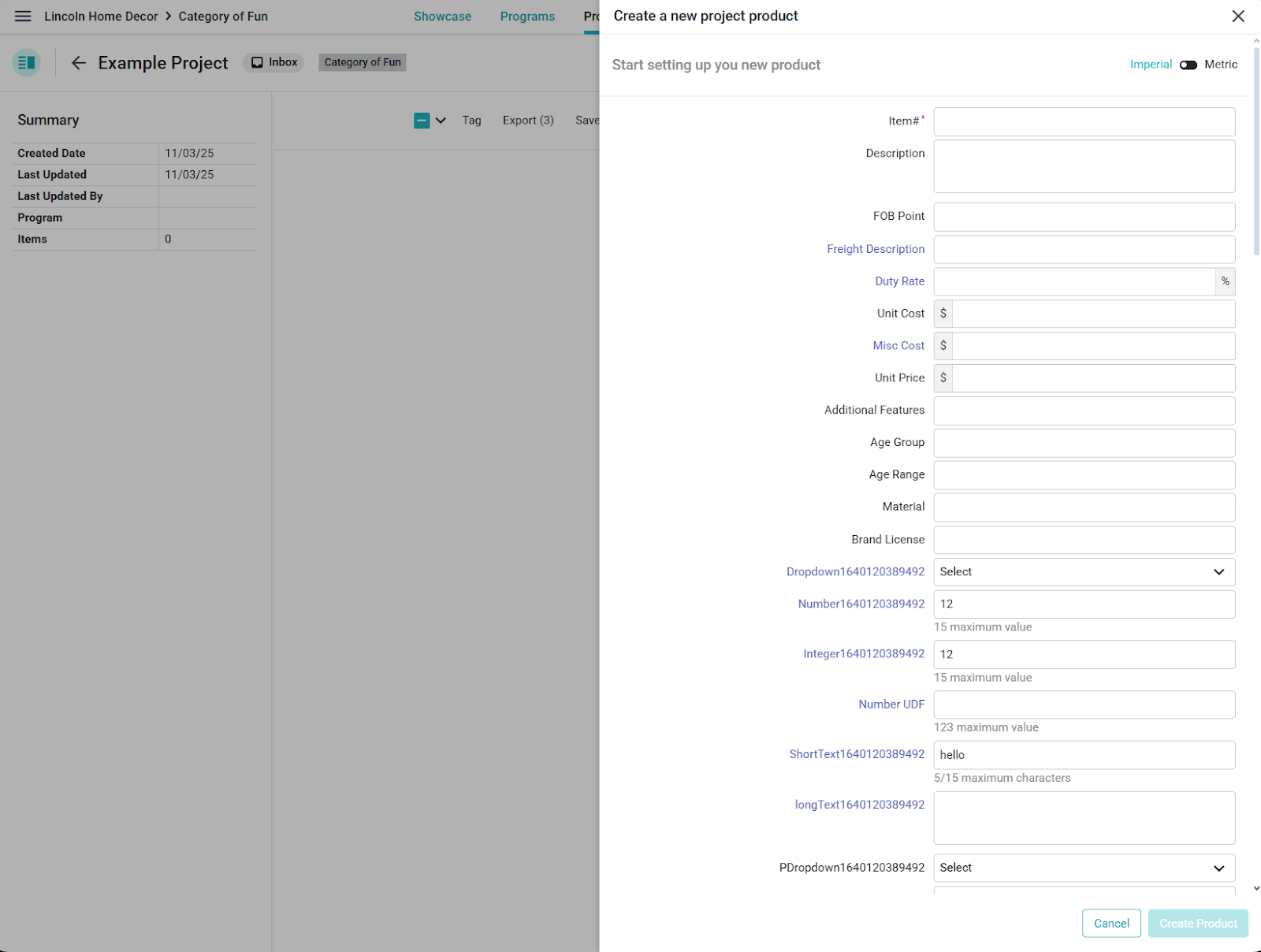
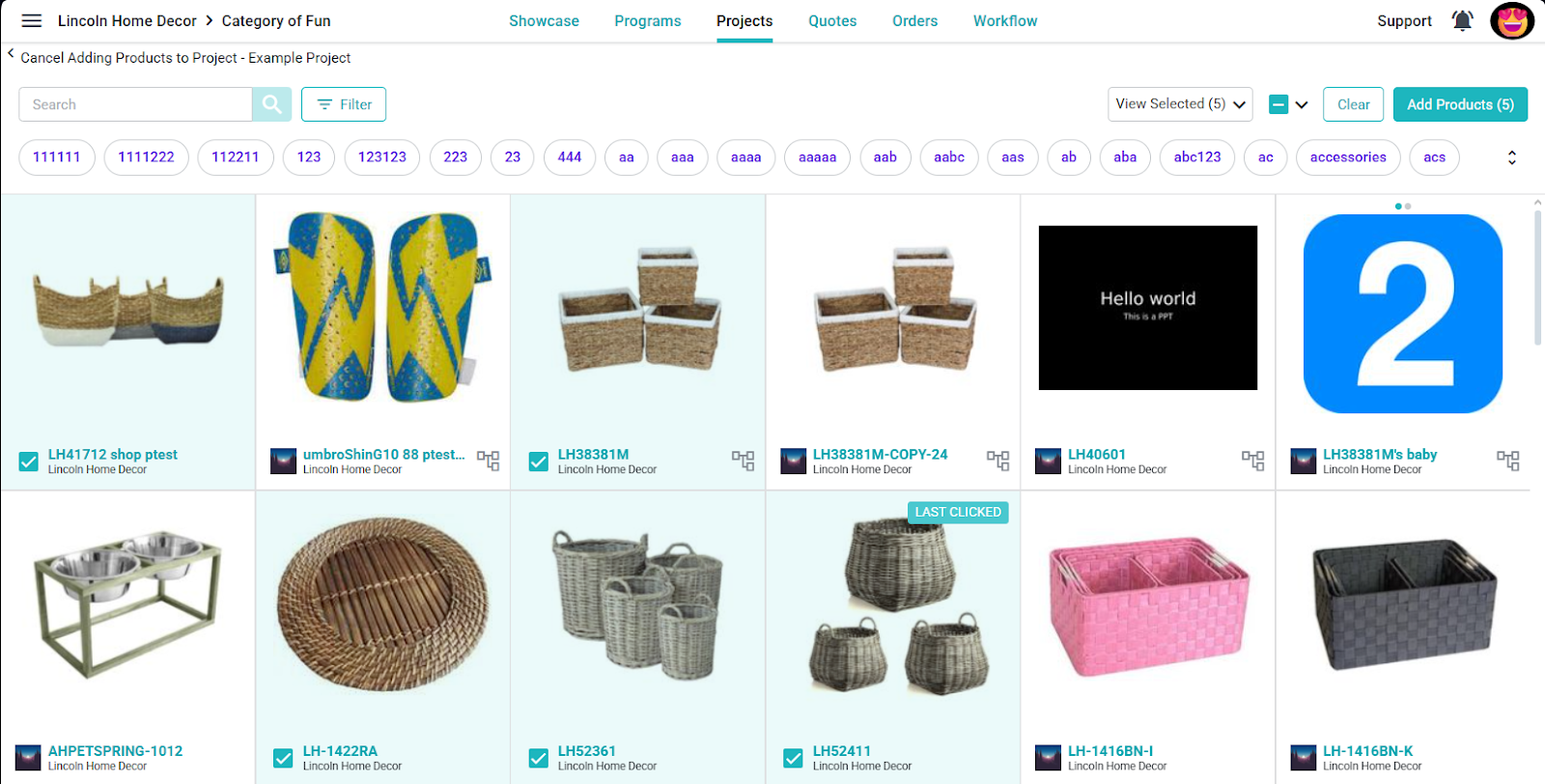
When creating a PLM-only product, enter the required Item # and complete the fields for the selected category.
Work with project products
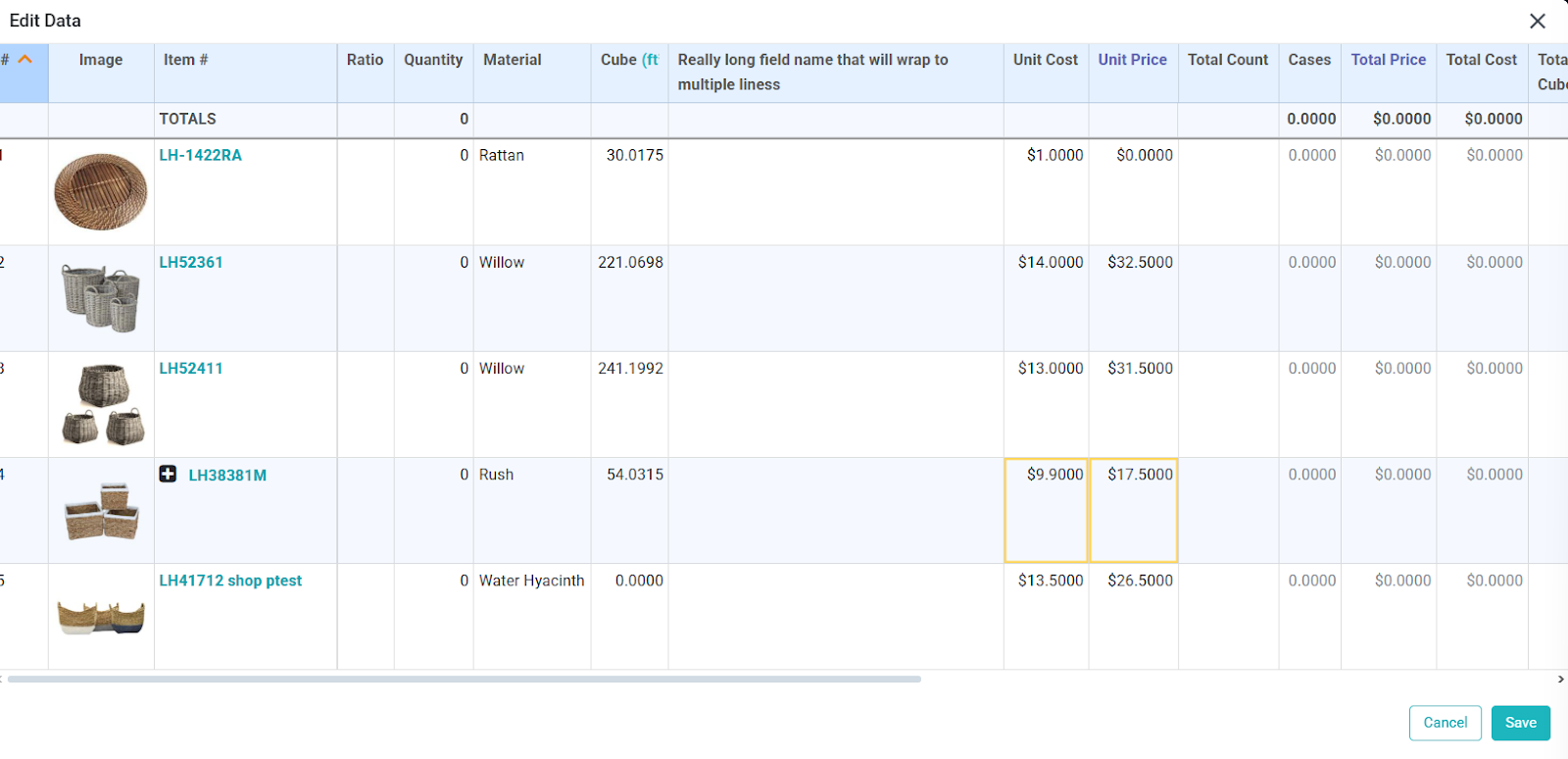
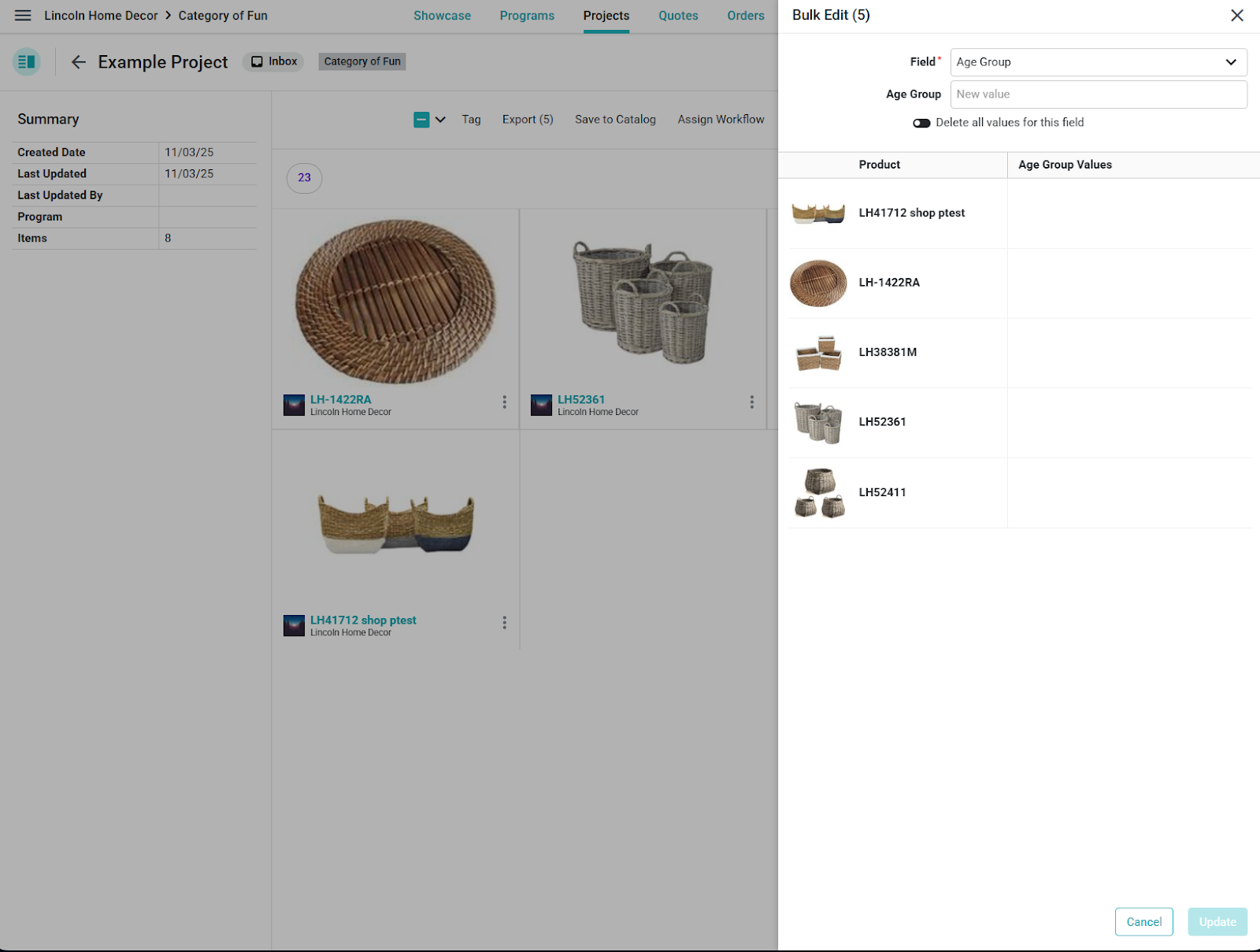
Project product actions can include Tag, Export, Save to Catalog, Assign Workflow, Remove, Edit Data, or Bulk Edit, depending on selection and permissions. To save a product to Catalog, select Save to Catalog, review the step-two tag choices, then review and save only when the selected products and tags are correct.
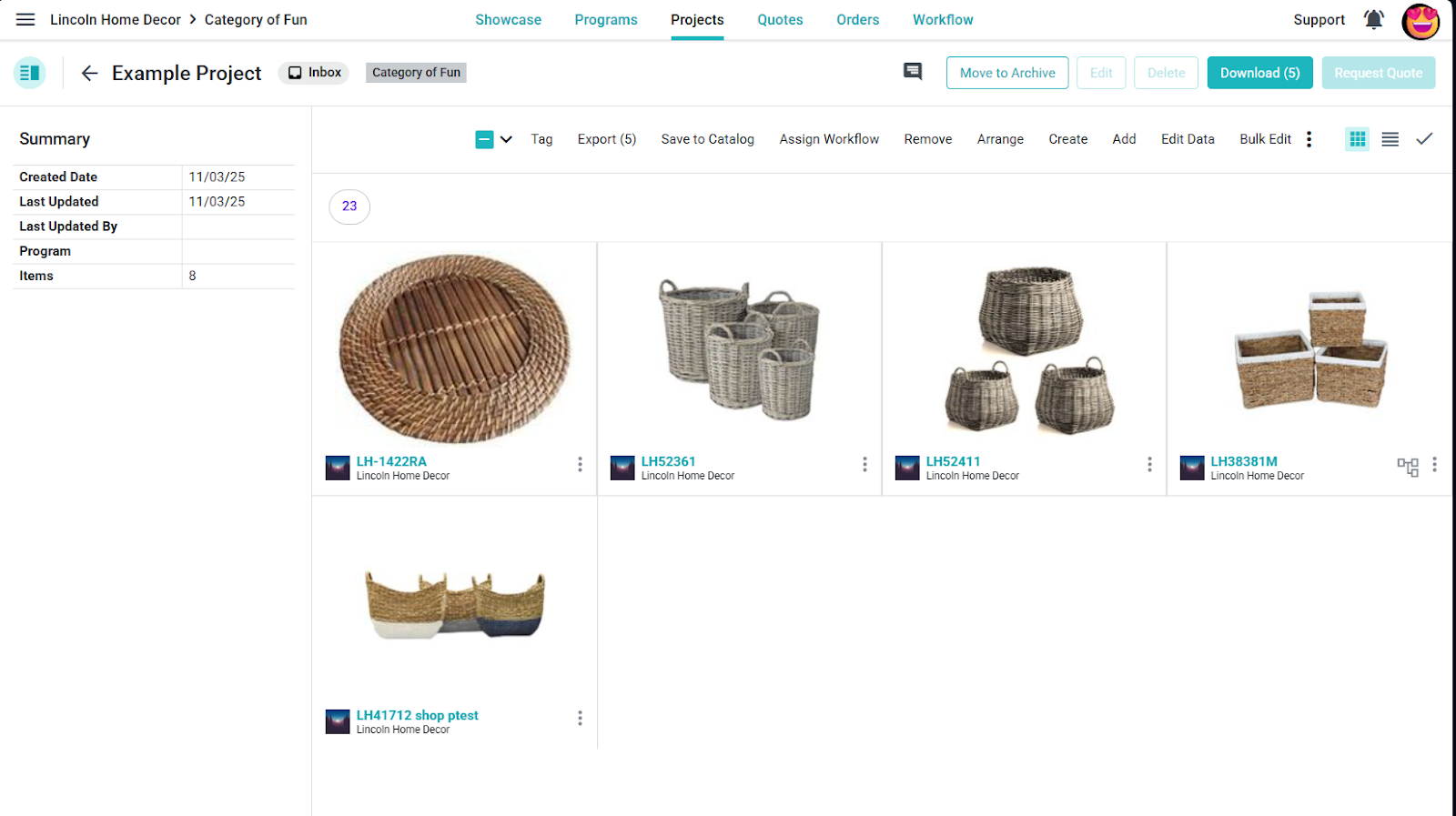
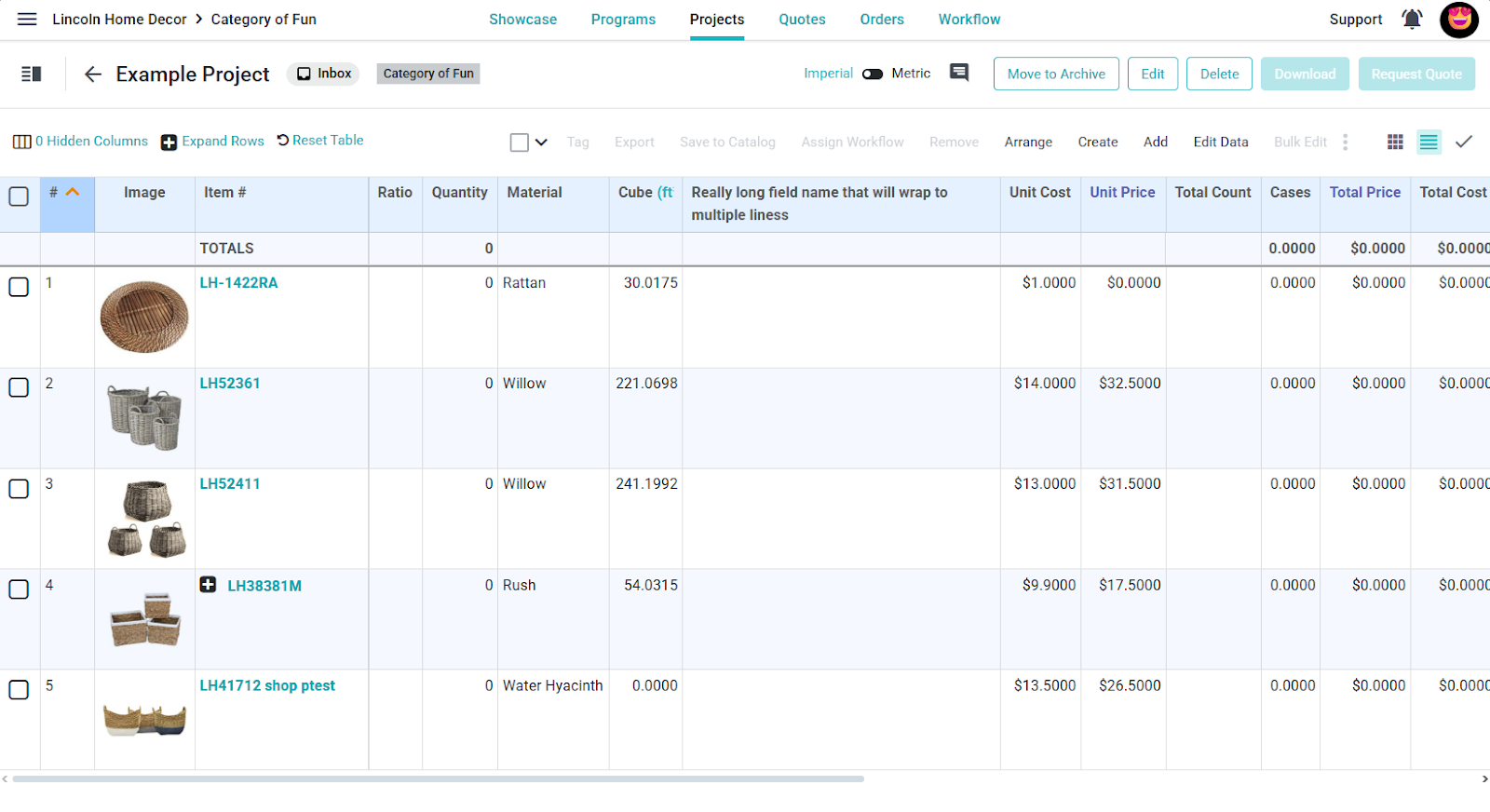
To assign a workflow, select Assign Workflow, choose the workflow, and review the task due dates before saving.