

When Products have been finalized and are ready to be sent out for Quotes, Surefront makes it easy to send out the information to several suppliers. When sending a request for a quote, if the Supplier is also on Surefront, you will be able to communicate in real time while coordinating the Product design and production.
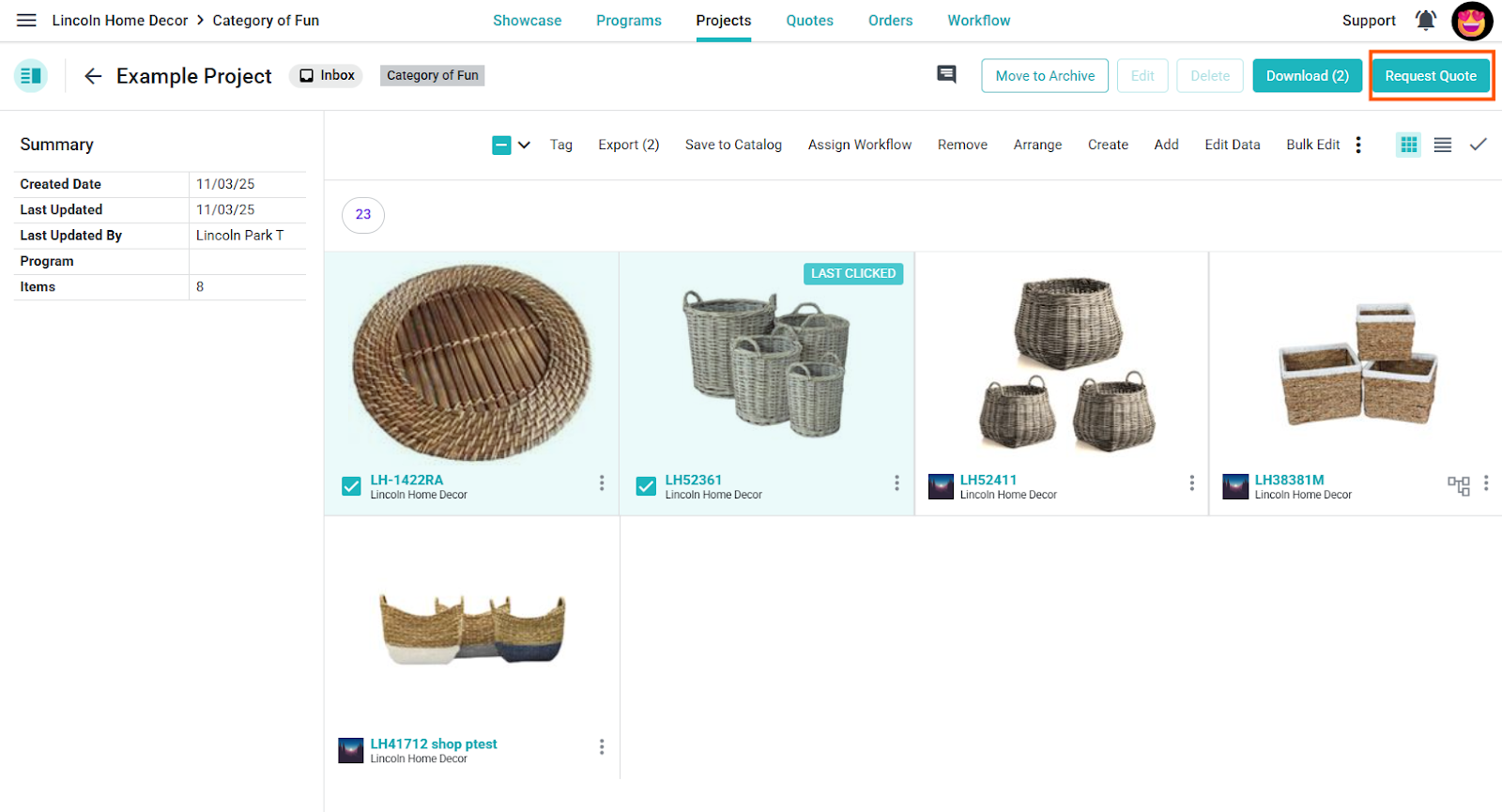
To create a Request for Quote in the Project, select the Products you want to send to the Supplier and select Request Quote in the upper right-hand corner.
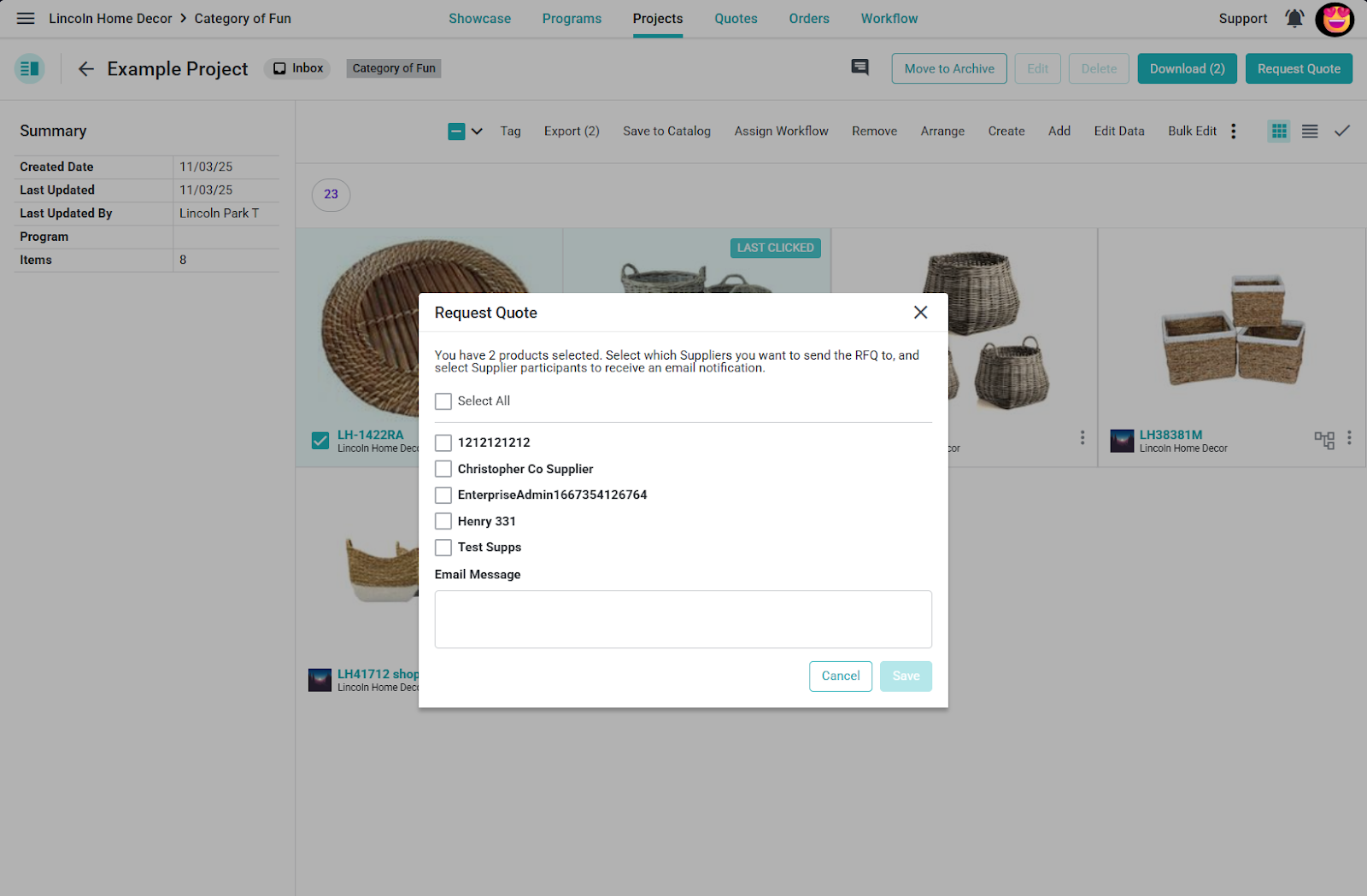
After selecting the Request Quote, you will see a pop-up screen where you can select the Suppliers you are interested in getting quotes from. If you are not seeing the Supplier listed, contact your administrator to add them to the Supplier list.
After selecting the desired supplier/s, you have the option to send them an email in the system or not, but an Email message will be required:
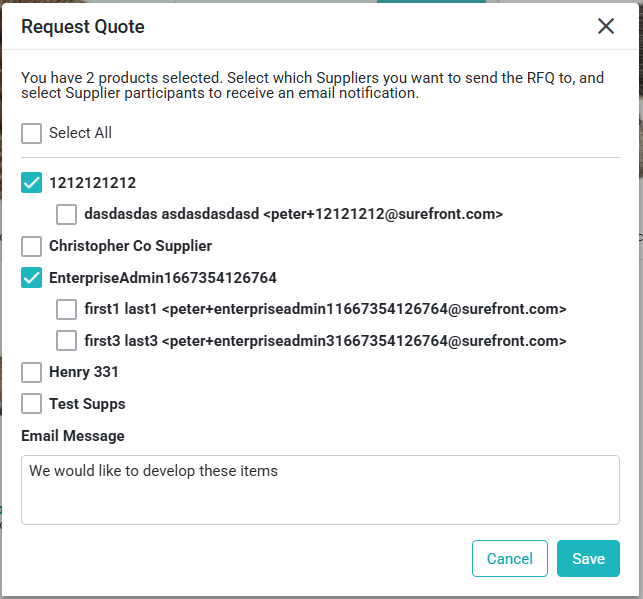
Select Save, and a Quote will be created for each of the Selected Suppliers.
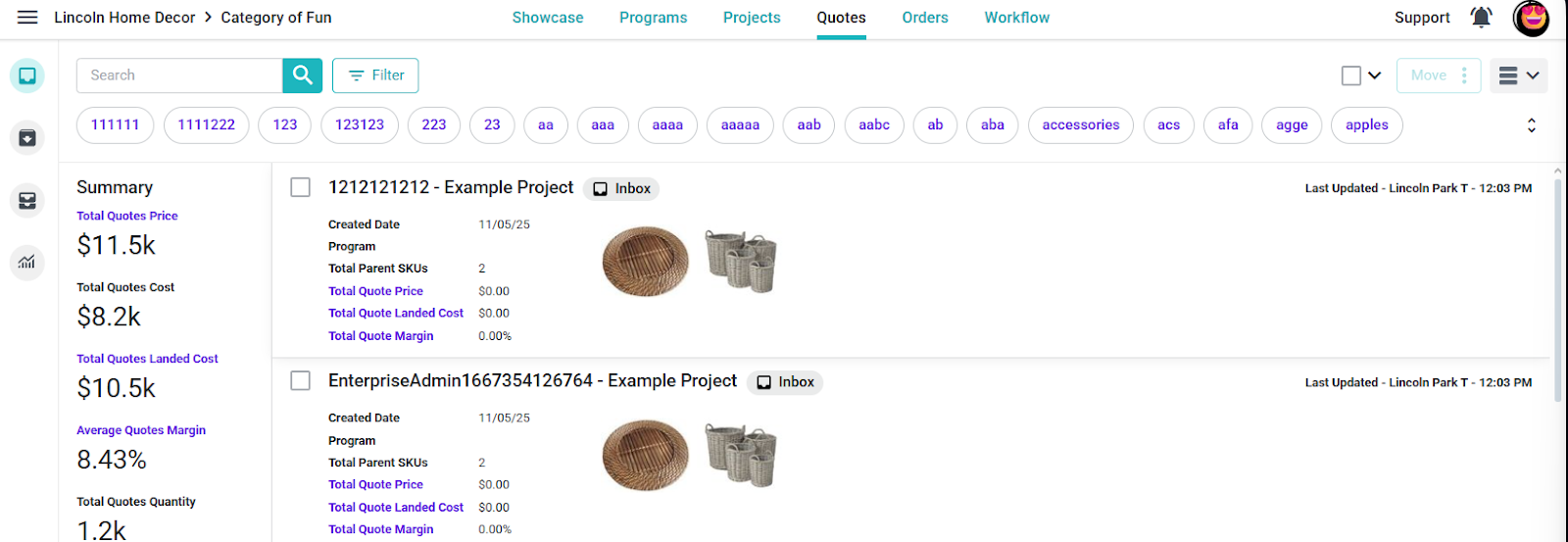
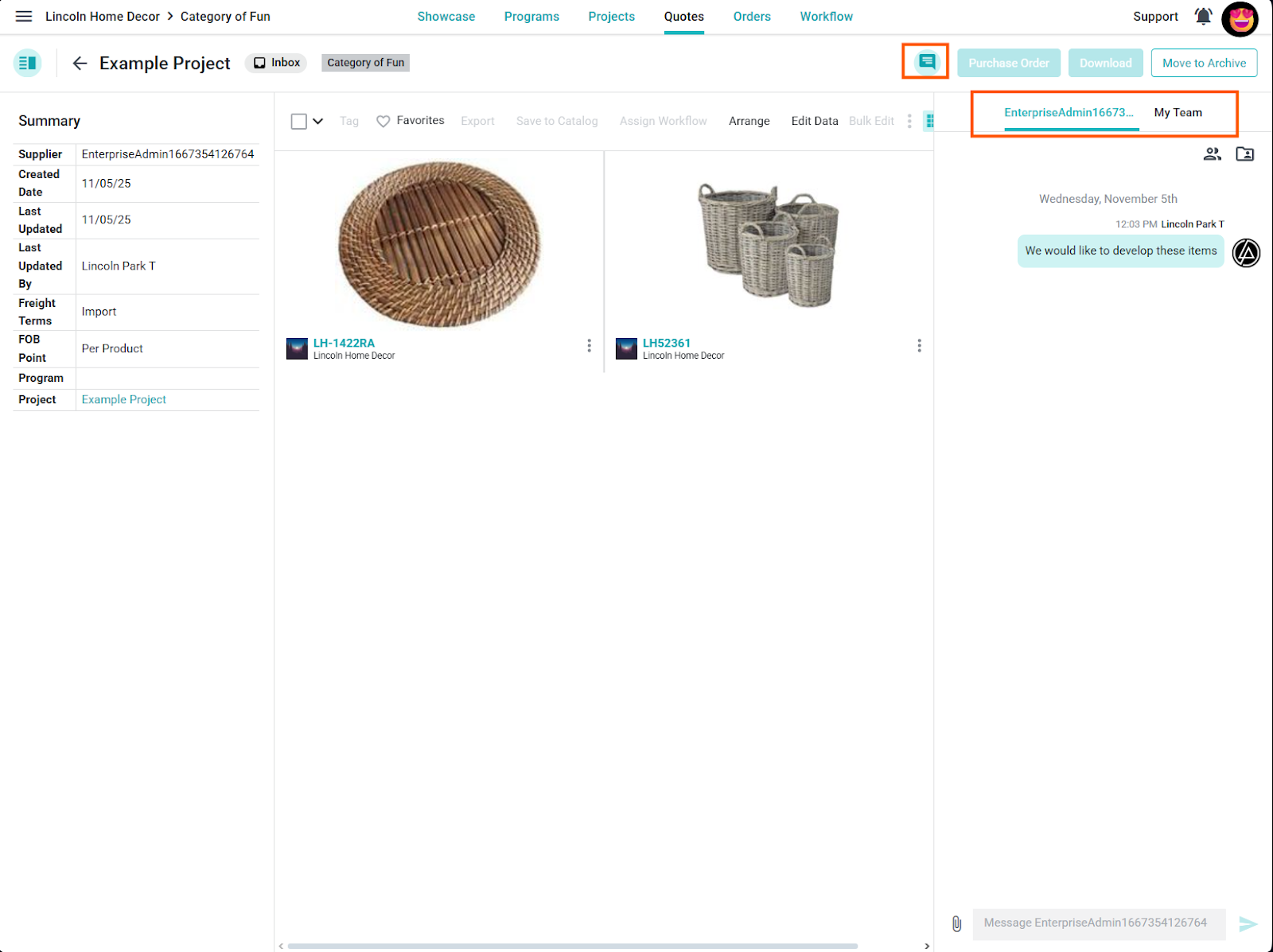
Your Supplier will be able to see the Products, and you will be able to communicate with them to make edits/changes to the products. Be sure to @ message the person you are communicating with, that way, in addition to getting a notification in platform, they receive an email as well! You can also use the messaging system to message your team on the platform as well. External users will only have access to the externally facing chat. As long as you are in the My Team section, the communication will stay internal to your team.
While coordinating the development of the products, you can return to the Project to see which Suppliers have been sent those products and what their costs are.
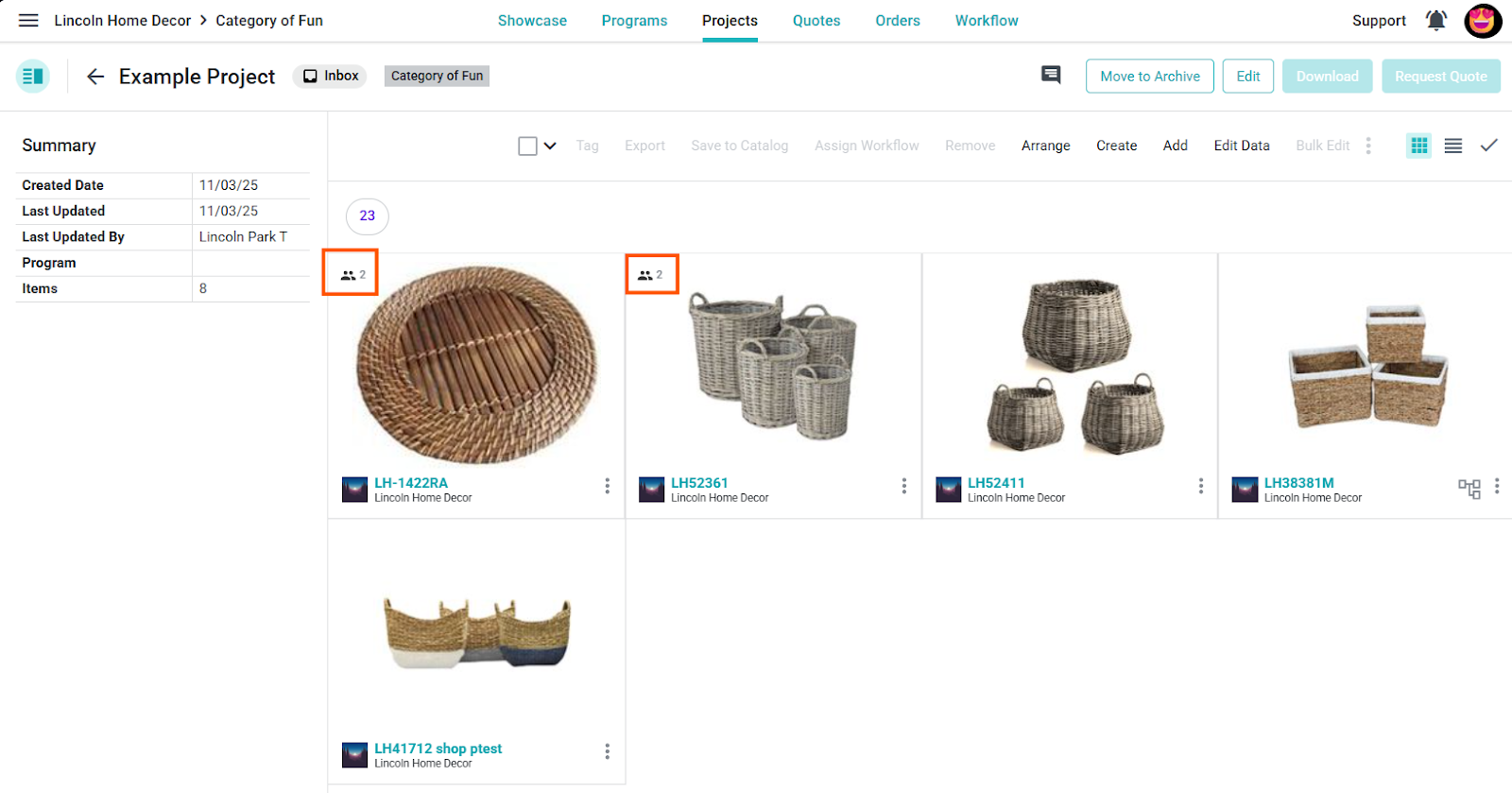
Hover over the top left of the Product card to see the Suppliers they were sent to:
To see what the differing Landed Costs would be, dependent on the Supplier, select a Product and go to the Product Details page within the Project. At the top, you will see the Quotes listed with the associated Supplier and their Landed Costs:
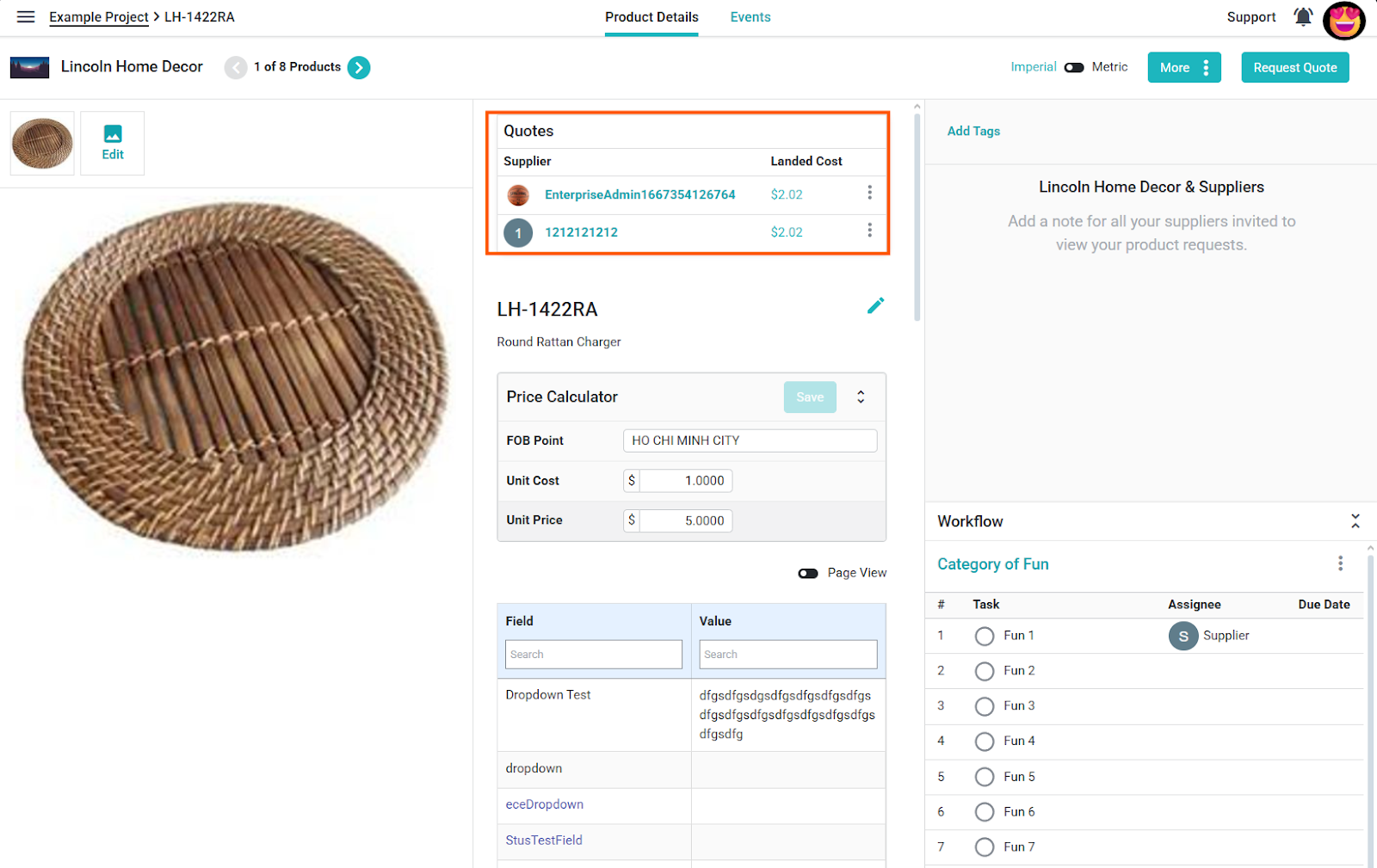
You can select the Supplier's name in this Quotes section to be redirected to the Quote itself. Once all the pieces are in place, we can submit the Quote for an Order and archive the Quotes we are not proceeding with.
Best practice in Surefront is once a Quote has been selected, send a message to the other potential Suppliers letting them know they have not been selected this round, and archive the Quotes. This way, the Inbox section of your Quotes stays clean and current.
