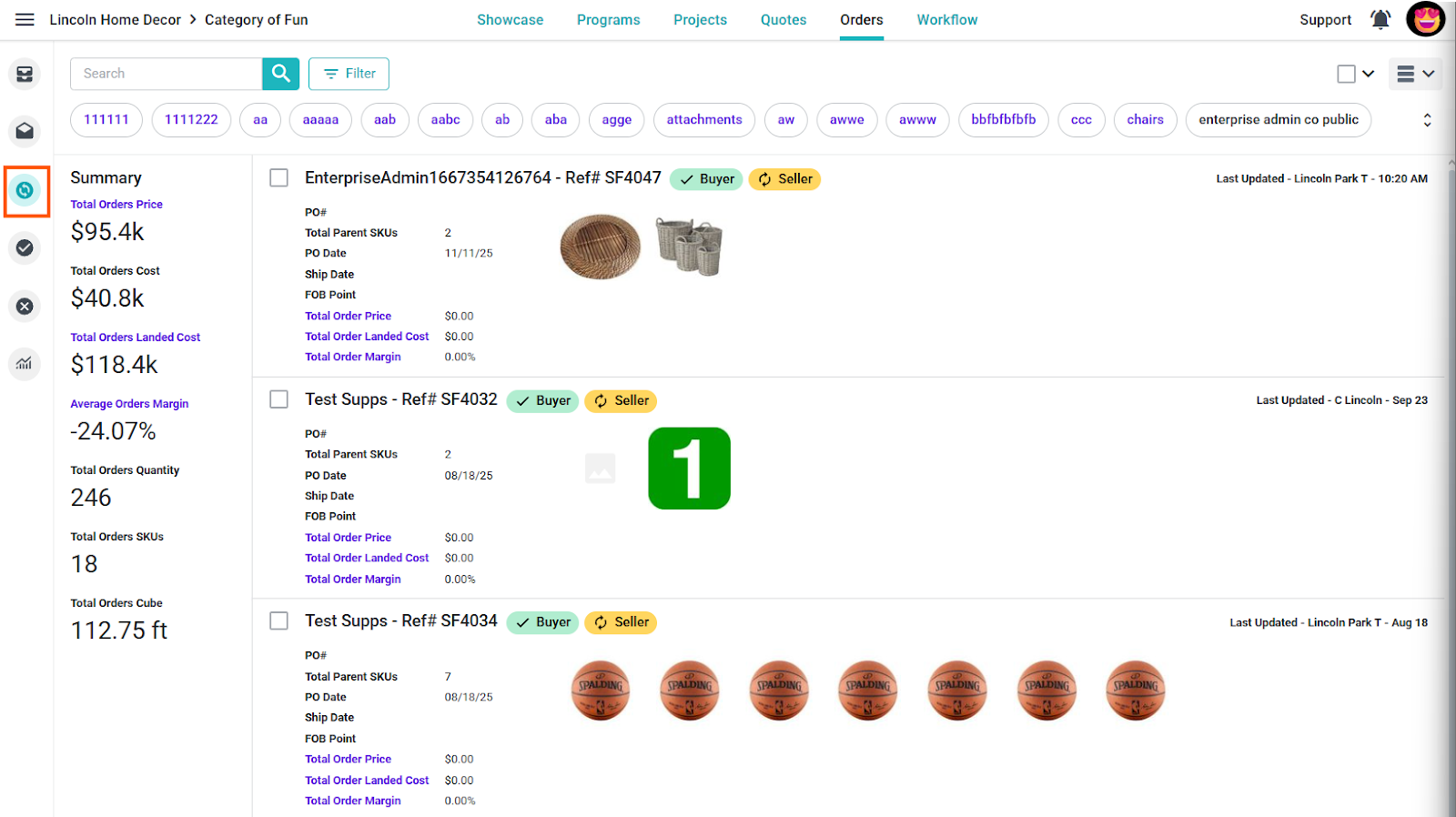

Buying/Creating - PLM
This is the buyer-side workflow for creating a Purchase Order from a supplier quote. It is separate from the seller-side order confirmation guide.
Create a draft Purchase Order from a quote
Open the quote and choose Purchase Order. The current form is titled Create Purchase Order. It shows an optional Program, required Freight Terms, Destination, required Copies, and the selected product rows with Supplier and Buying Category.
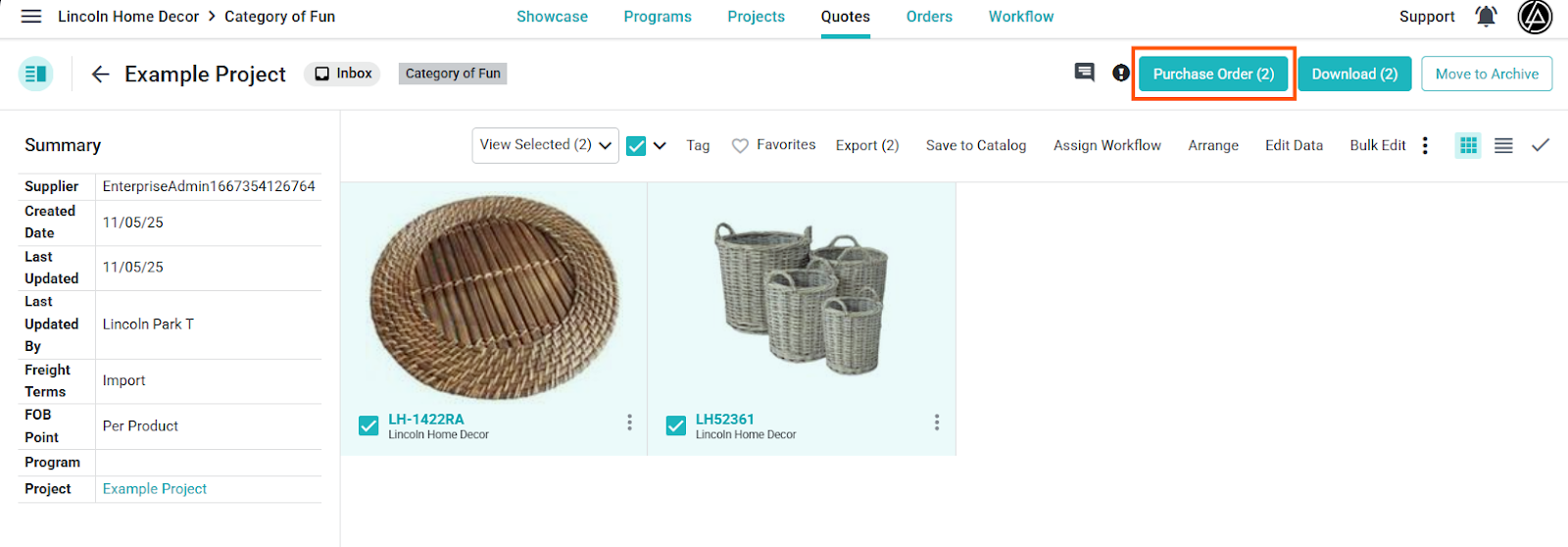
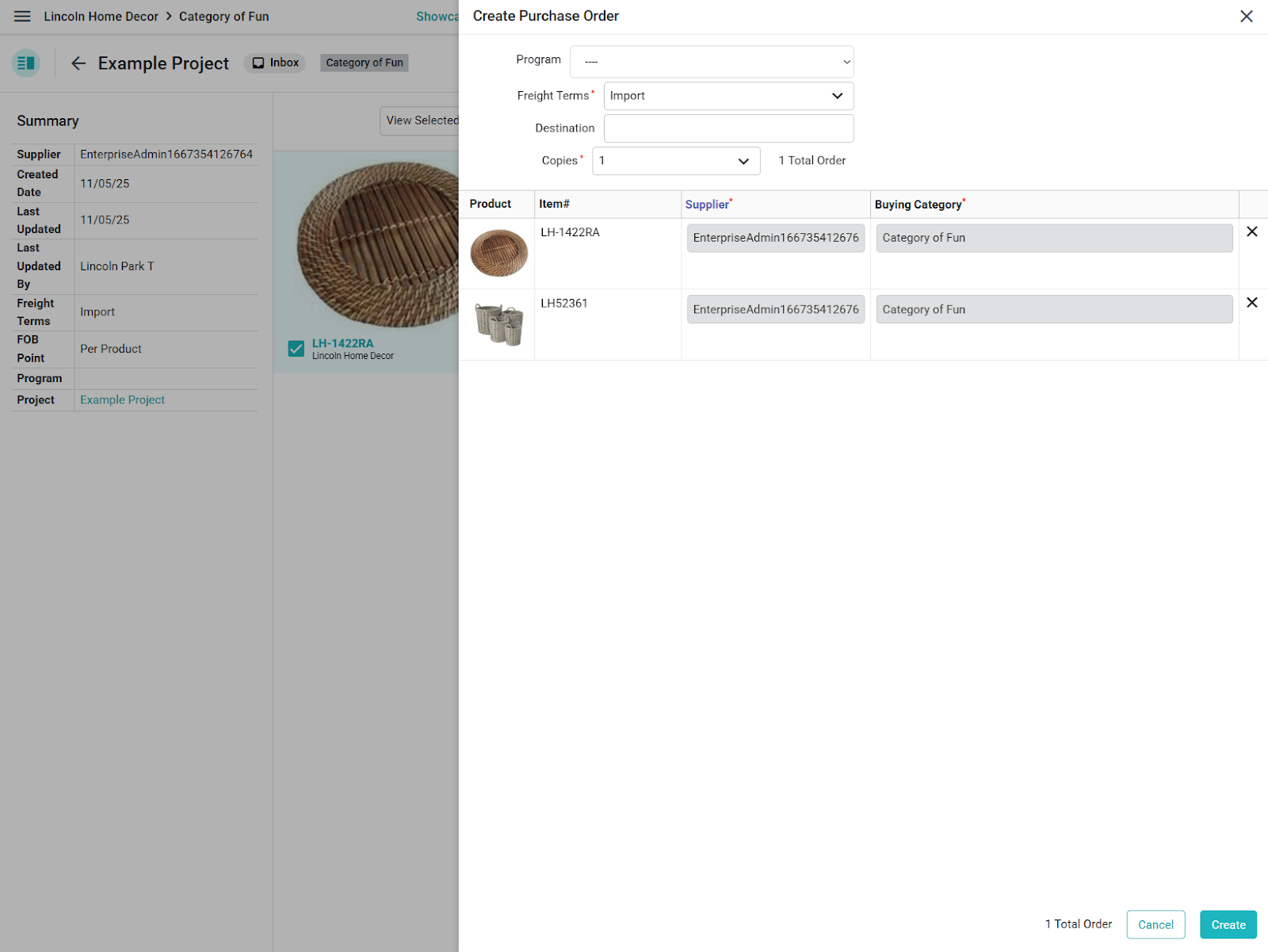
Review each selected product and required supplier/category information. Choose the applicable freight terms and copy count, then use Create when the form is complete.
Review and send
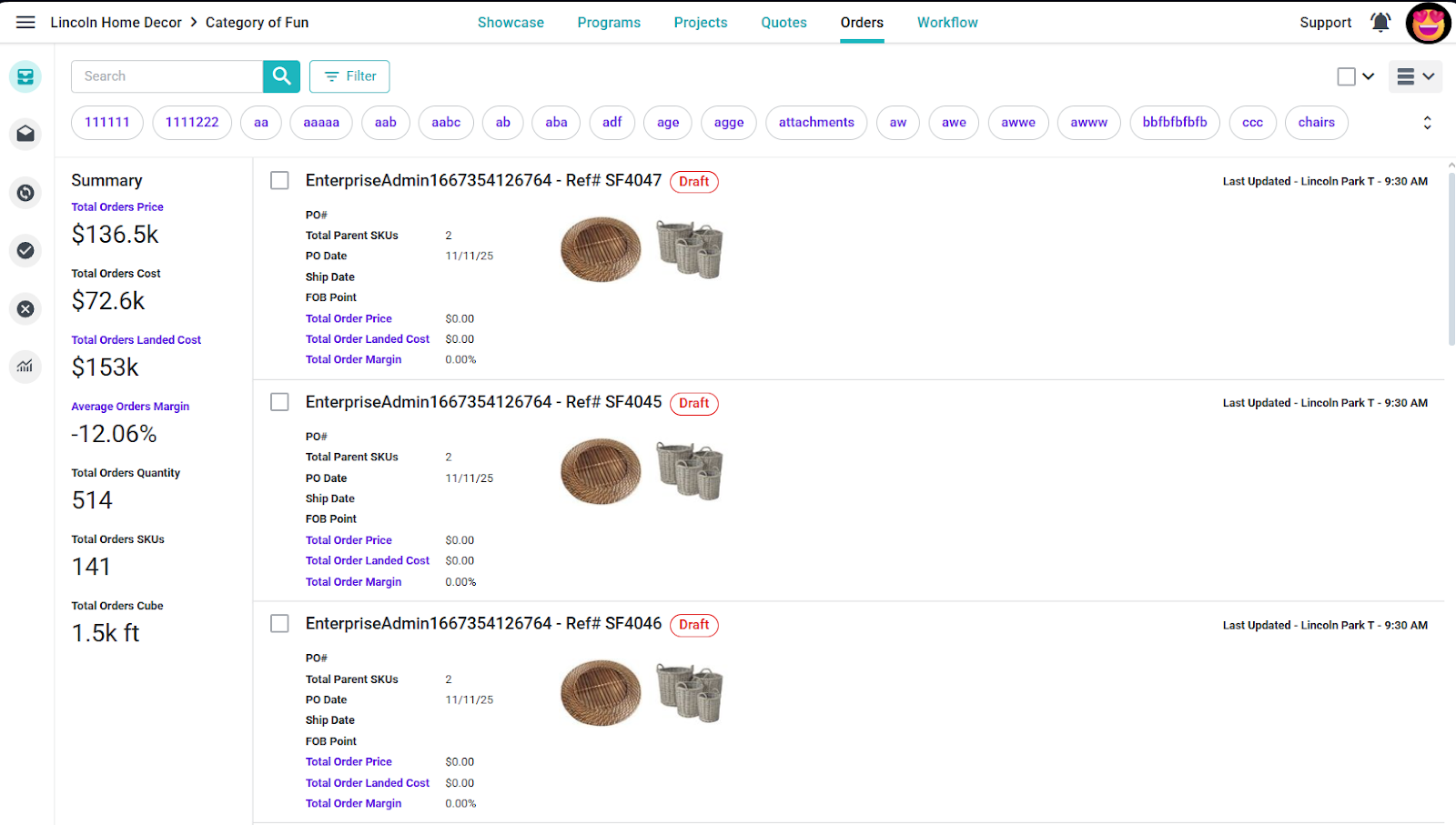
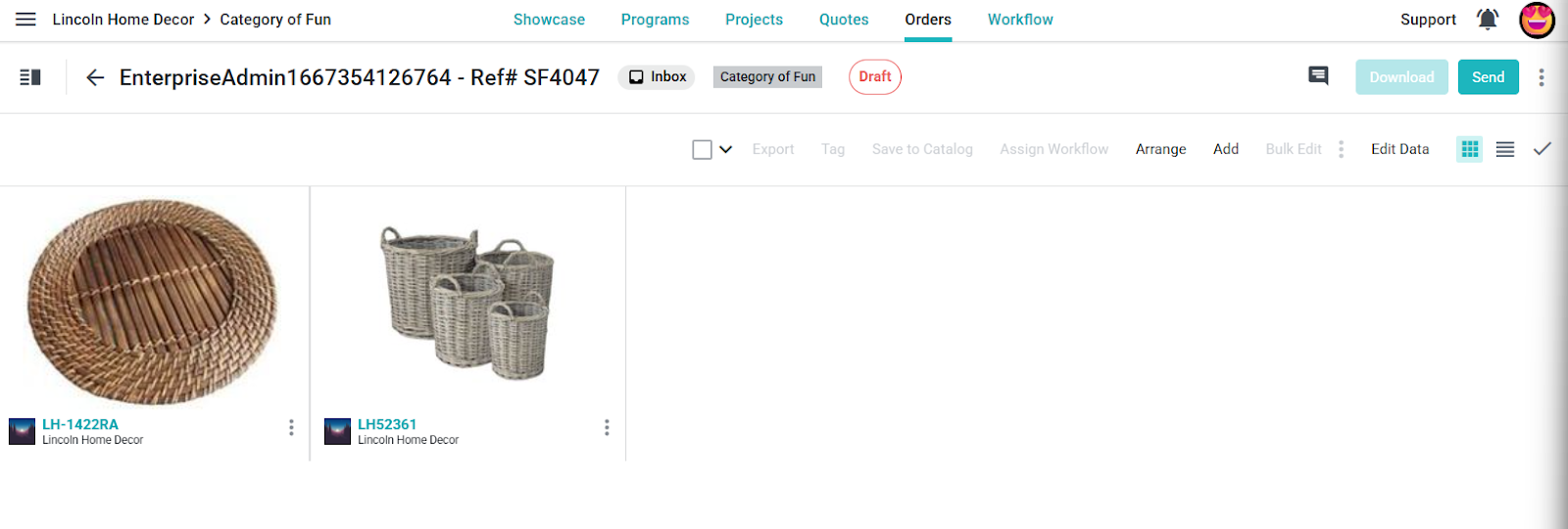
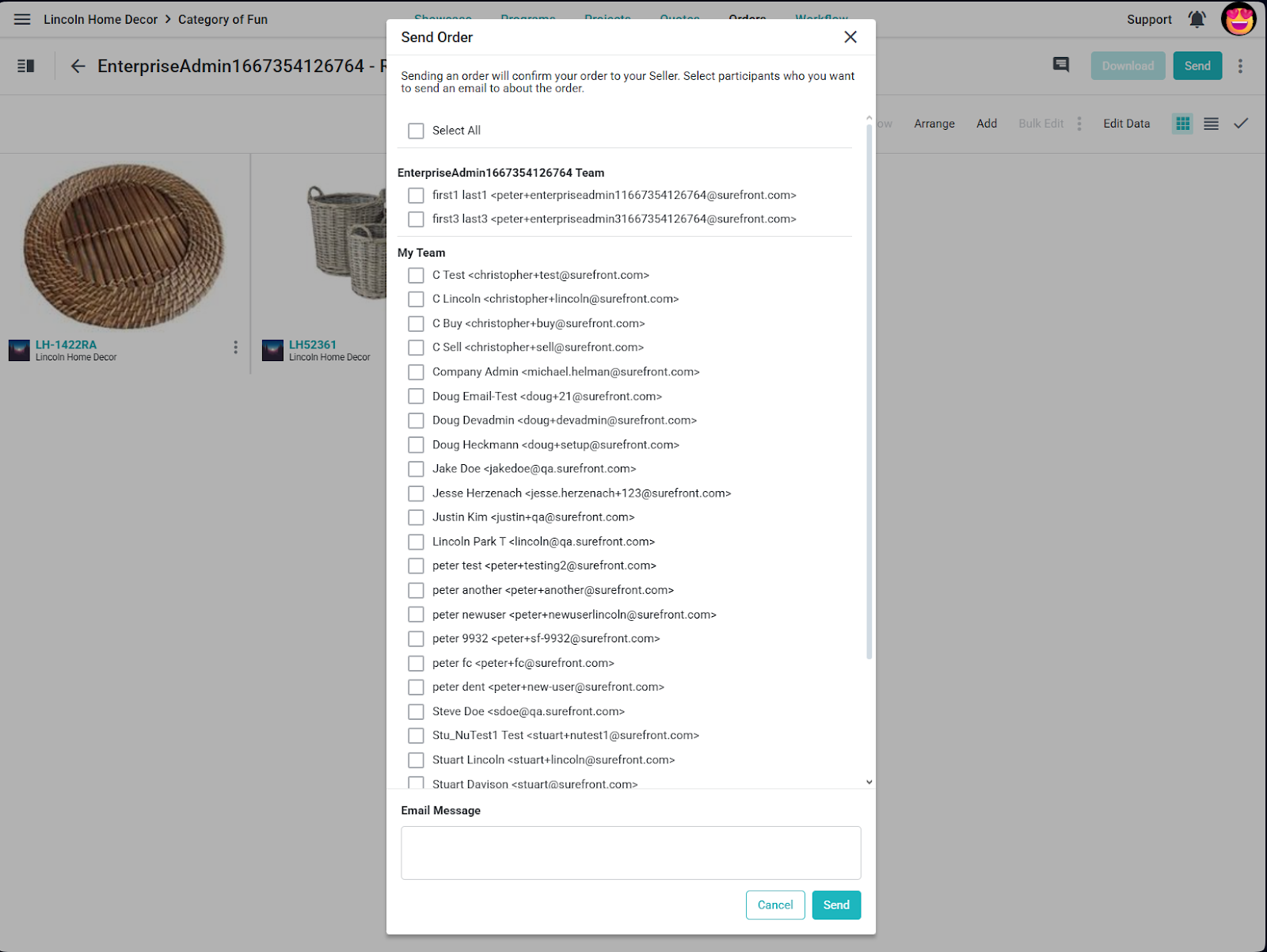
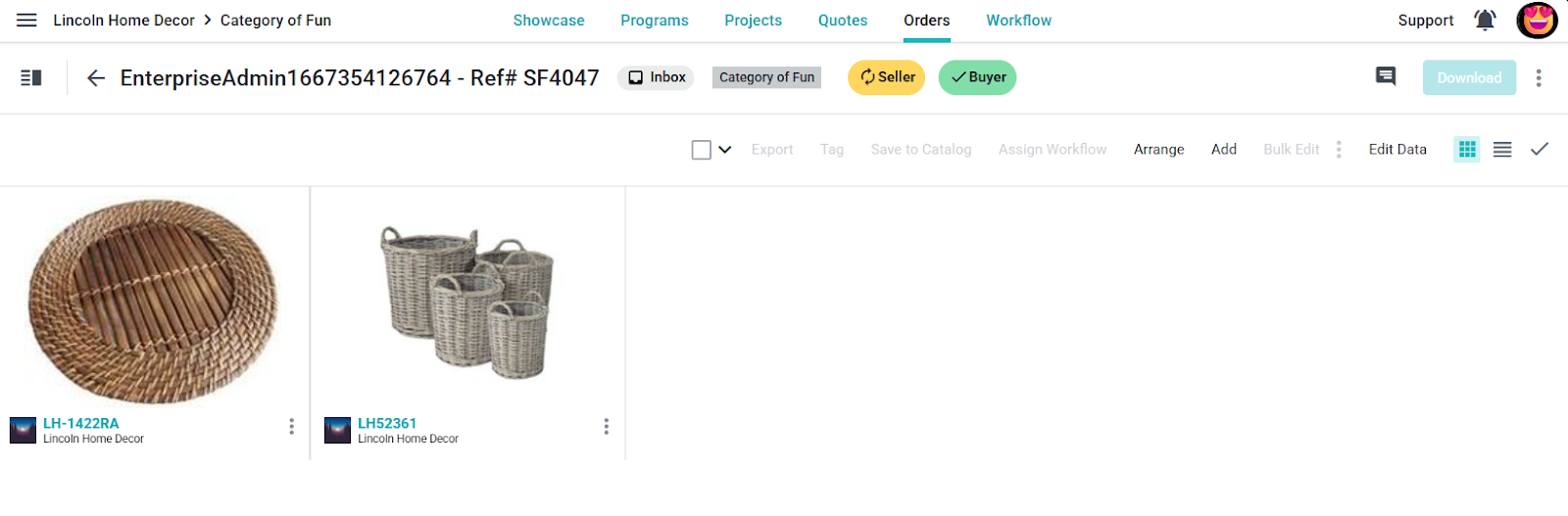
Review the new order’s status, product values, and order details before sending or confirming it. Buyer and seller confirmation actions require the corresponding company-side order permissions.