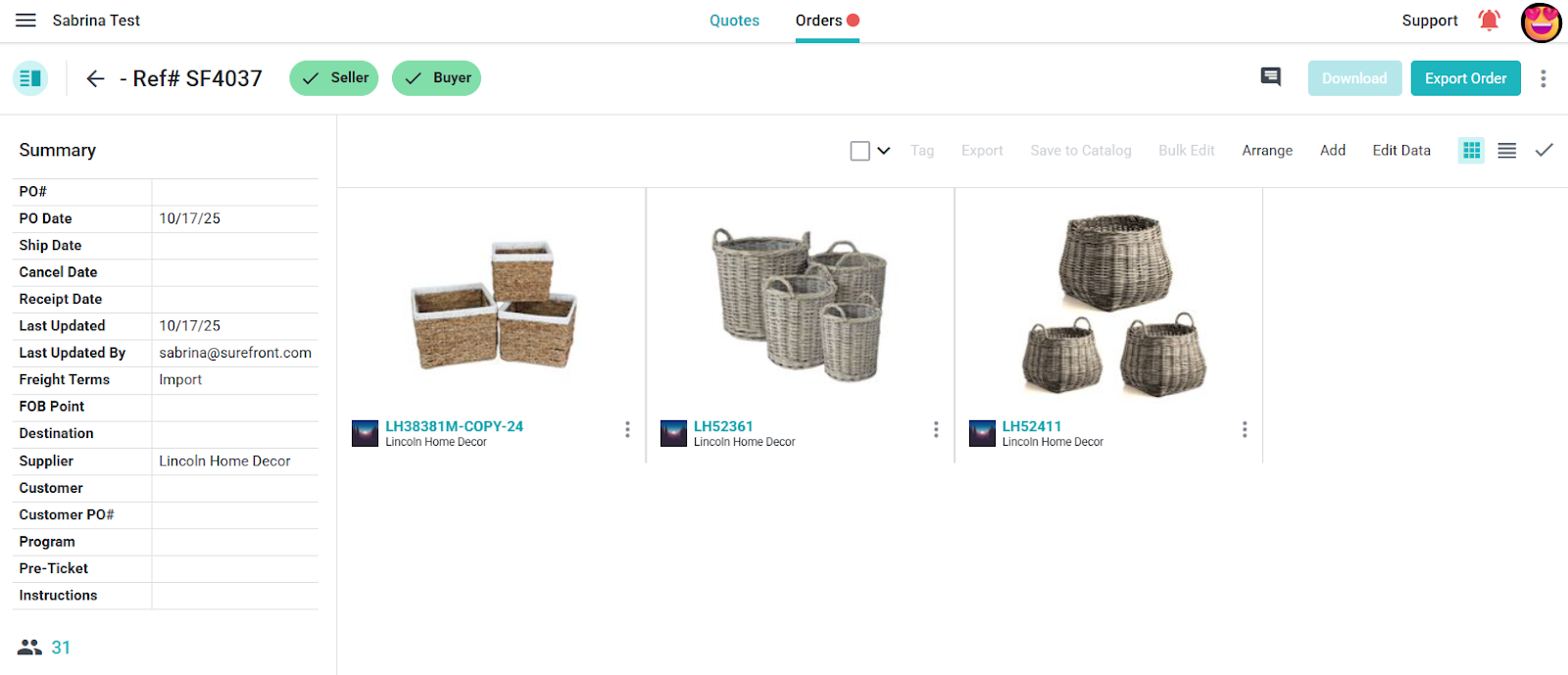

Selling - CRM
As the seller, prepare a draft Sales Order, review it, send it to the buyer, then review the buyer's response before confirming the order.
Prepare the draft sales order
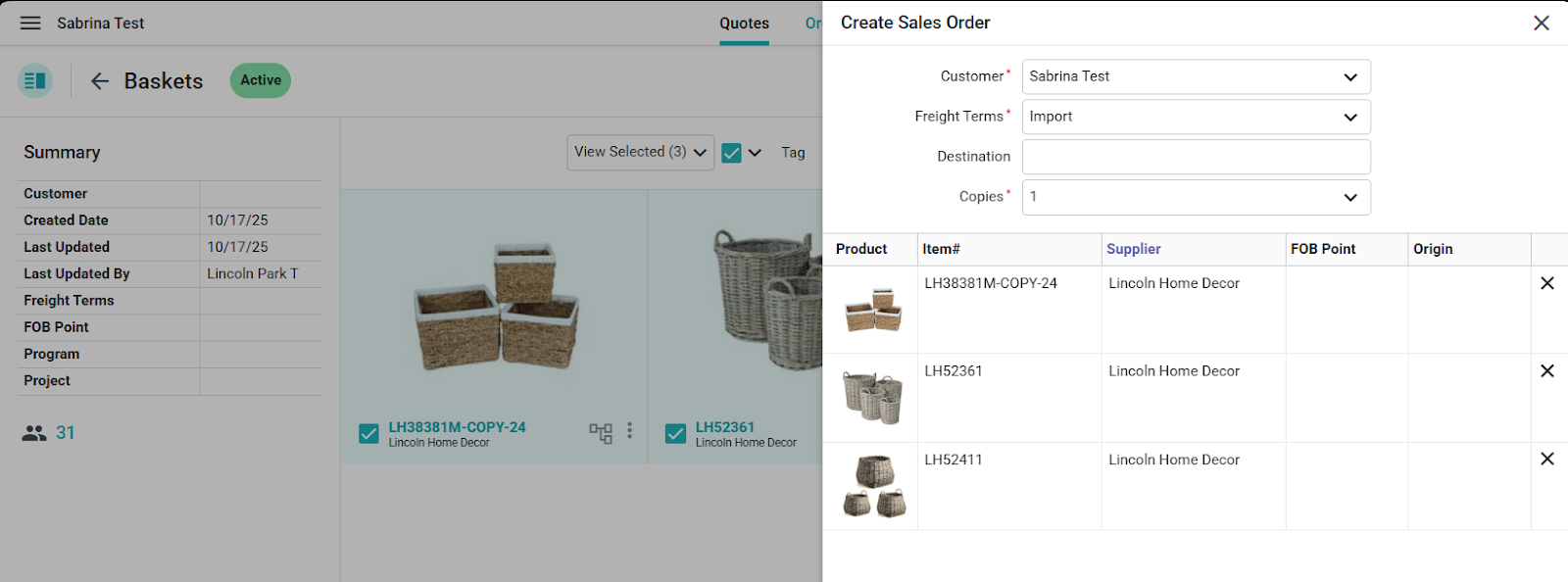
Open the relevant CRM customer or quote and start a draft Sales Order. Enter the customer, freight terms, and number of copies. For a linked-company customer, select the required Category when it appears; if you start from a customer category, it may already be selected. Review the selected products, then create the draft.
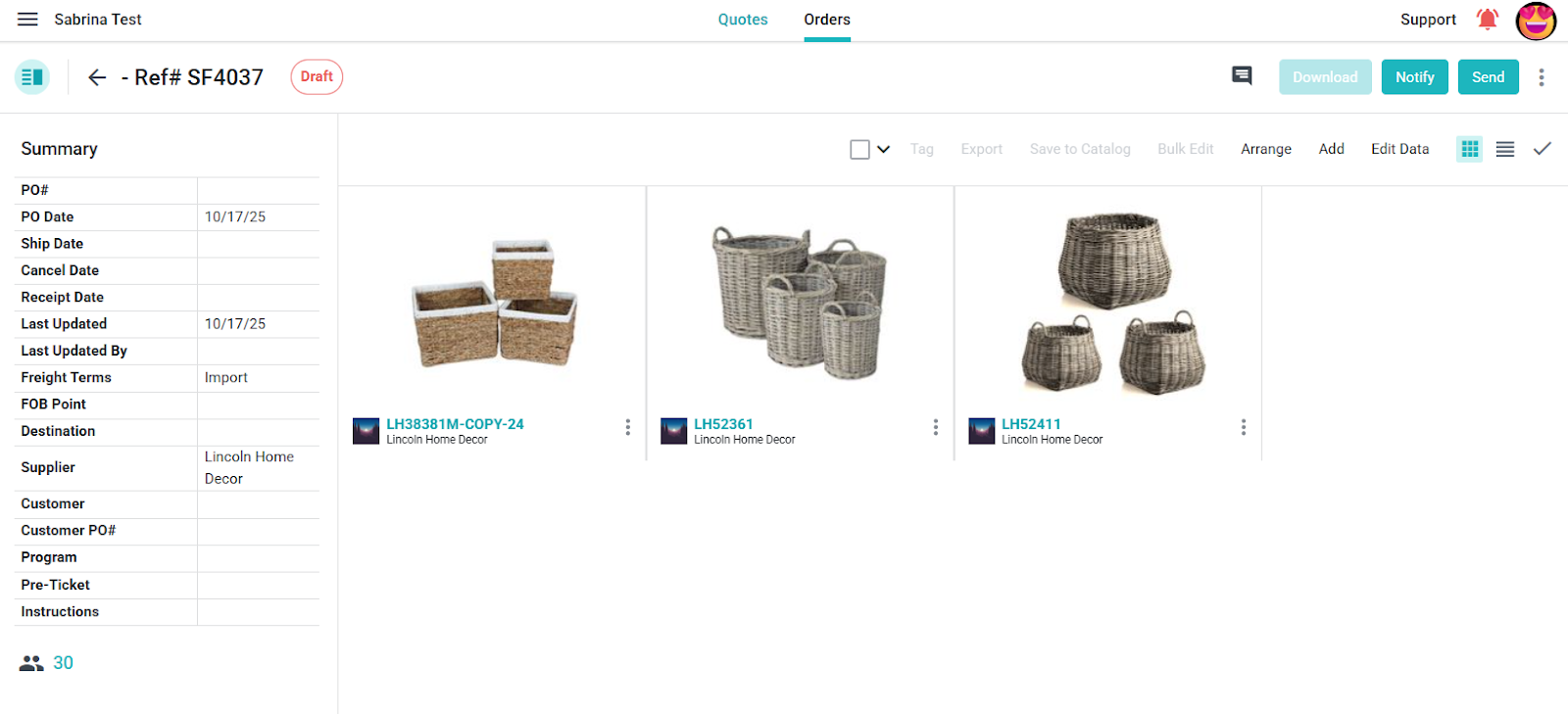
Review the newly created Draft order and correct its values before sending it. Do not treat the buyer's view as a seller confirmation.
Send the order to the buyer
When the order is ready, use the available Send action to share it with the buyer. The buyer sees the supplier's Sales Order as a Purchase Order. Review any message or recipient controls shown before submitting.
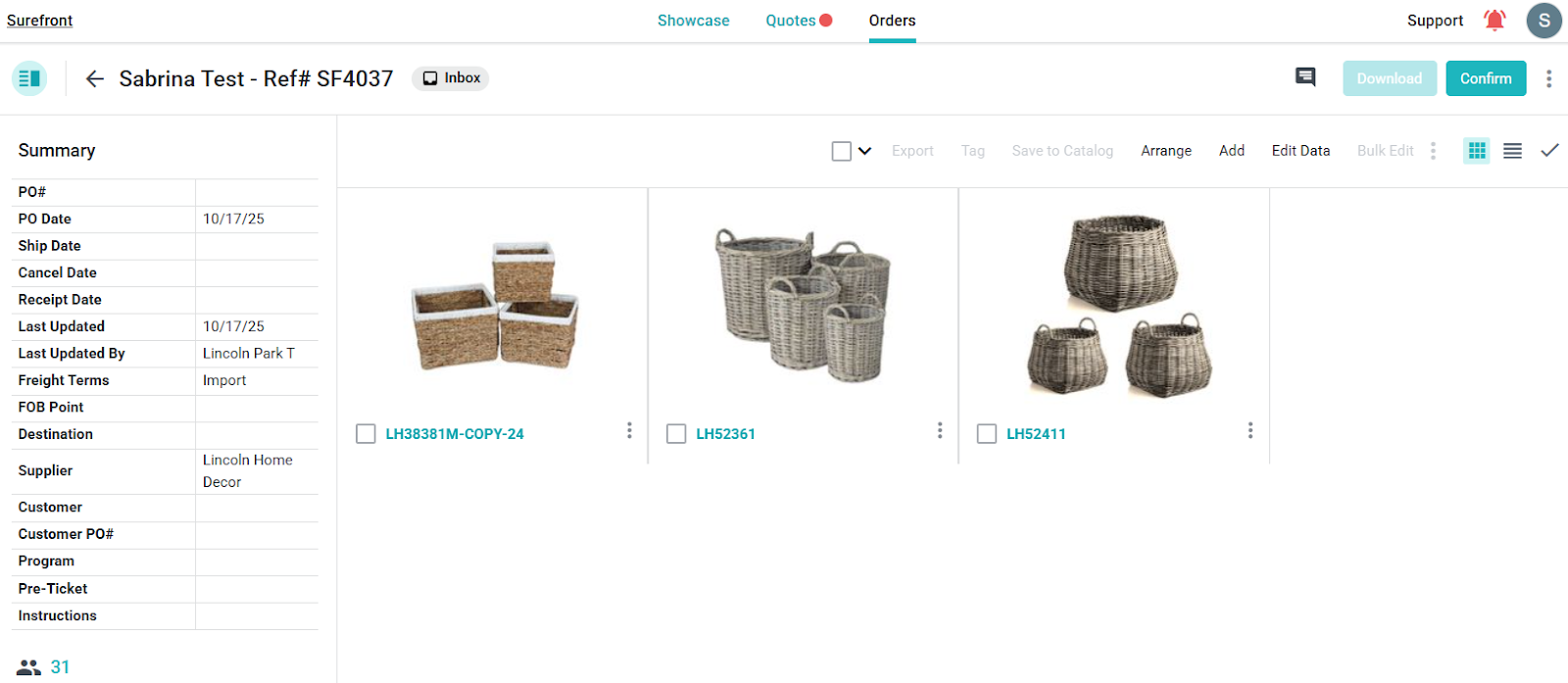
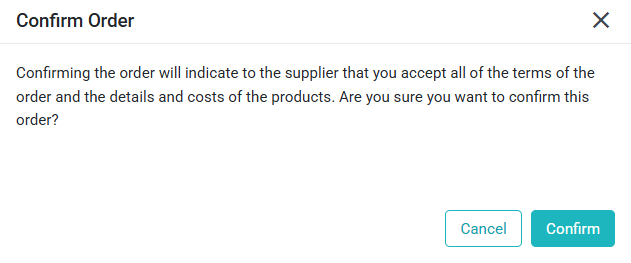
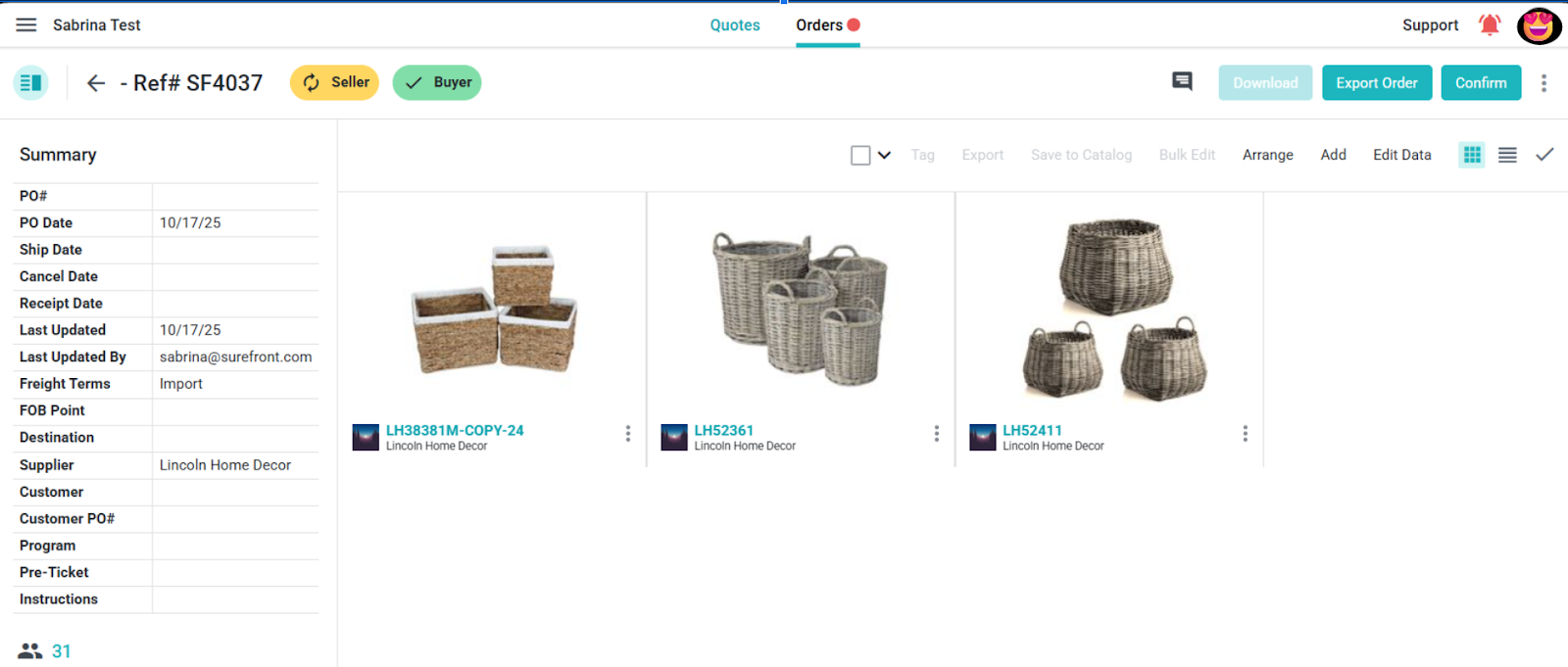
The buyer reviews the order and confirms it from their side. The seller's order view then indicates that buyer confirmation is complete while seller confirmation is still pending.
Complete seller confirmation
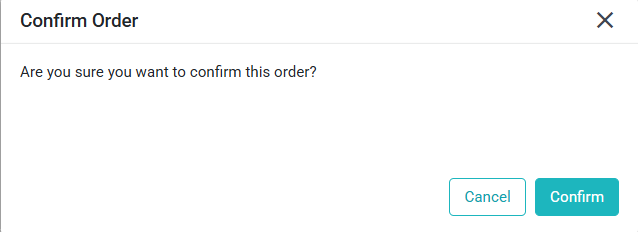
Recheck the order details. If the order is ready, use the seller-side Confirm action and review the final confirmation prompt. The order sequence is complete only after the applicable buyer and seller confirmations are recorded.