

Selling - CRM
Create a customer quote from CRM or Catalog, add products, and review the draft before sending it to the buyer.
Start a quote
In CRM, open the customer workspace and choose Create from Quotes. You can also select products in Catalog and choose Quote. In the Create Quote form, select the required Customer and enter the required Quote Title. For a linked-company customer, select the required Category after choosing the customer. Review the available Freight Terms, Program, and FOB Point options, then select Create Quote.
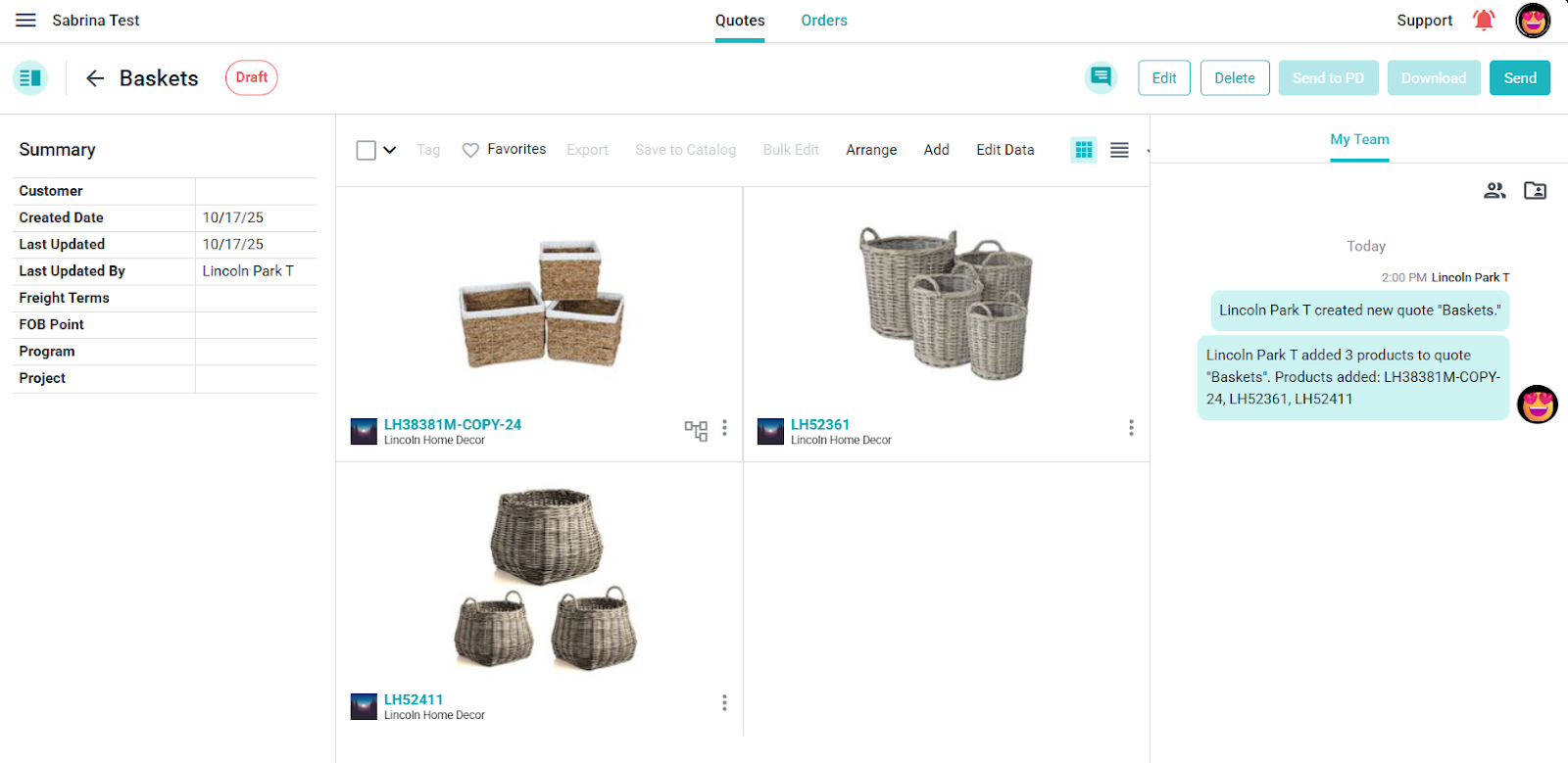
Add products and review the draft
If you started in CRM, add products from Catalog. Review the products, customer, title, and freight terms before continuing.
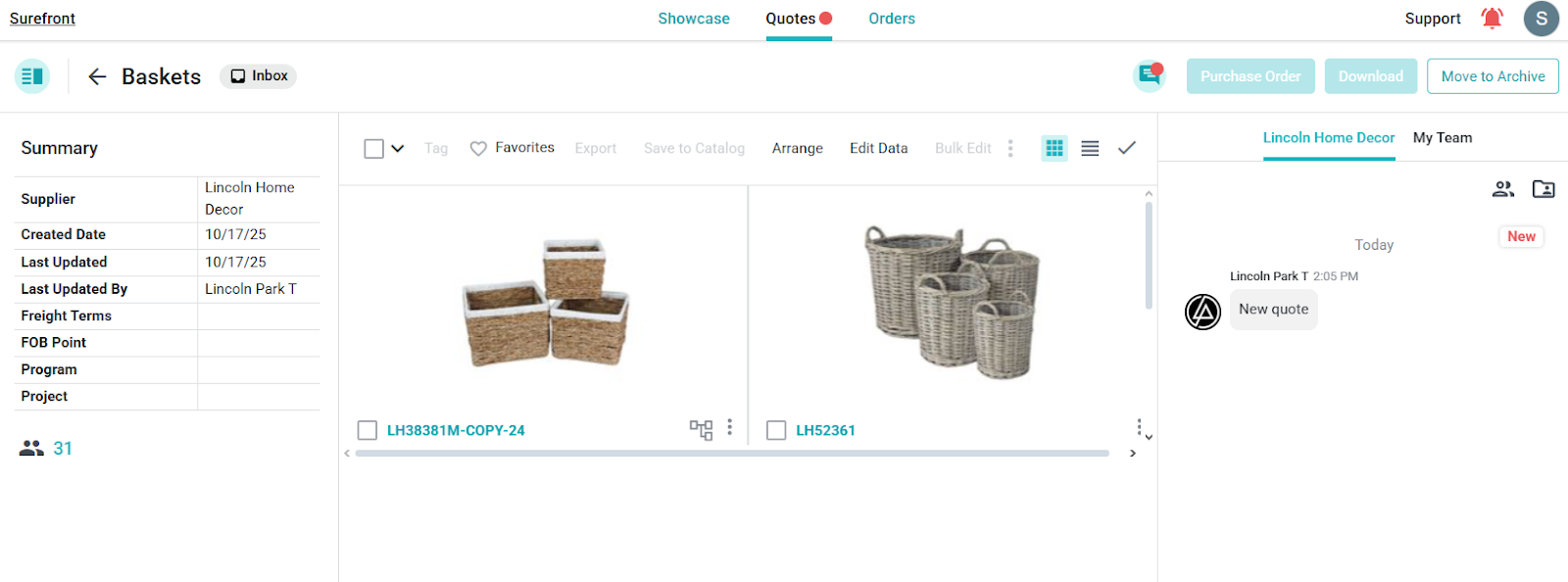
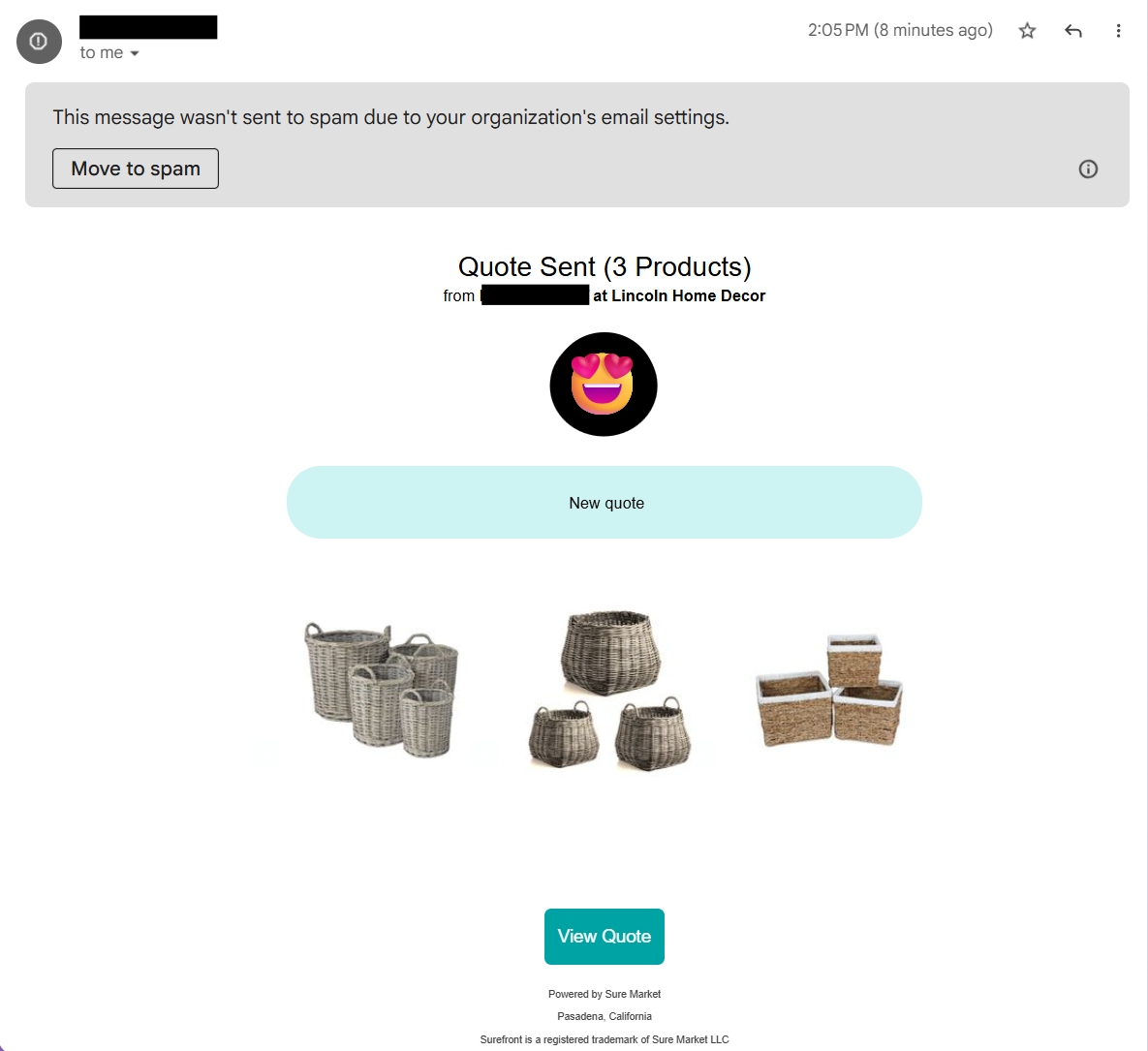
Keep the quote in Draft while you review it. When the quote is ready, open it and choose the send action to share it with the customer.
