
Techpacks and Linesheets

Generate Custom Techpacks and Linesheets

S
Written by Sabrina Vincent
Updated this week

Once a Product is created in Surefront, you can use the Download button to launch a Techpack (single product) or Linesheet (multiple products) generator.

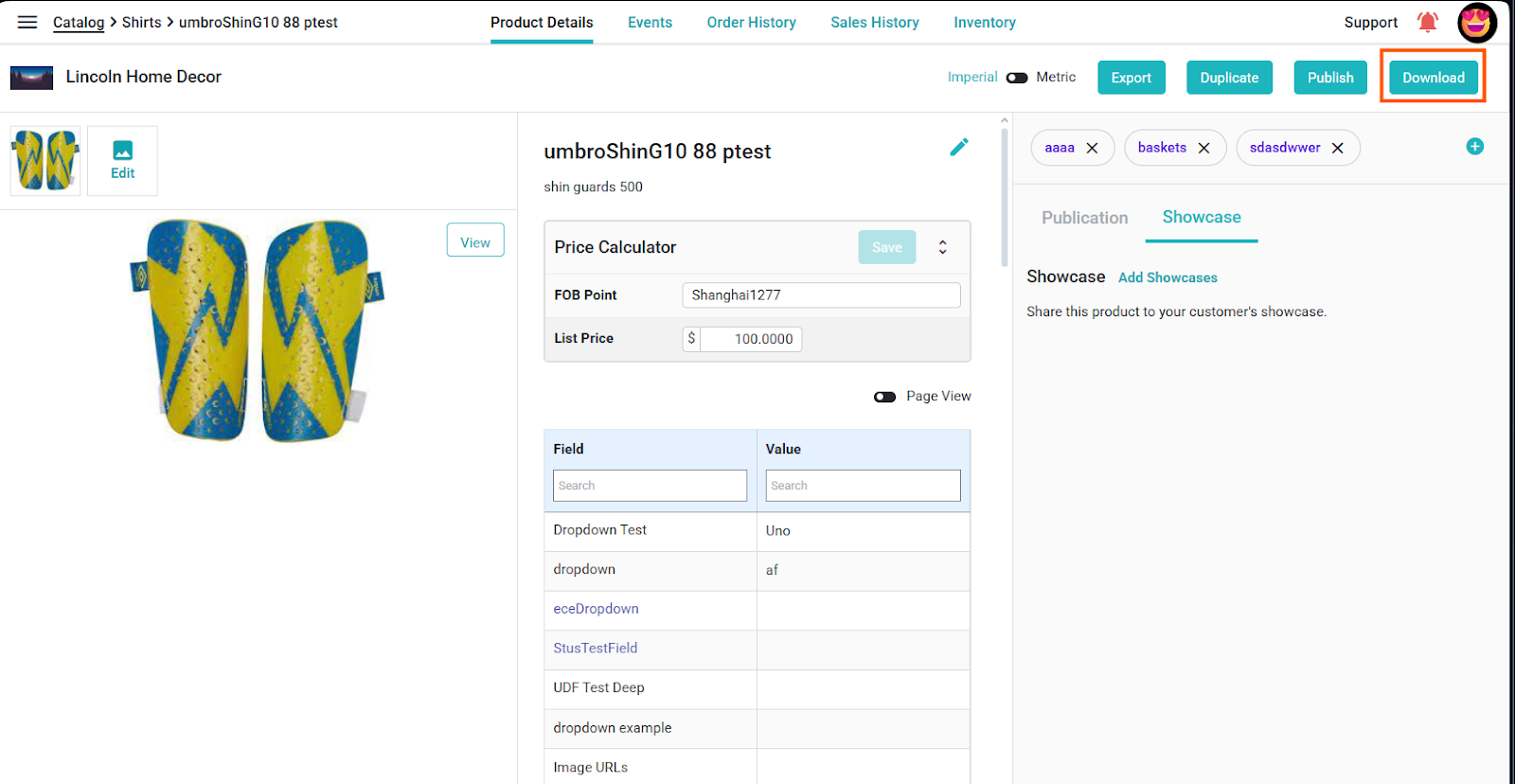
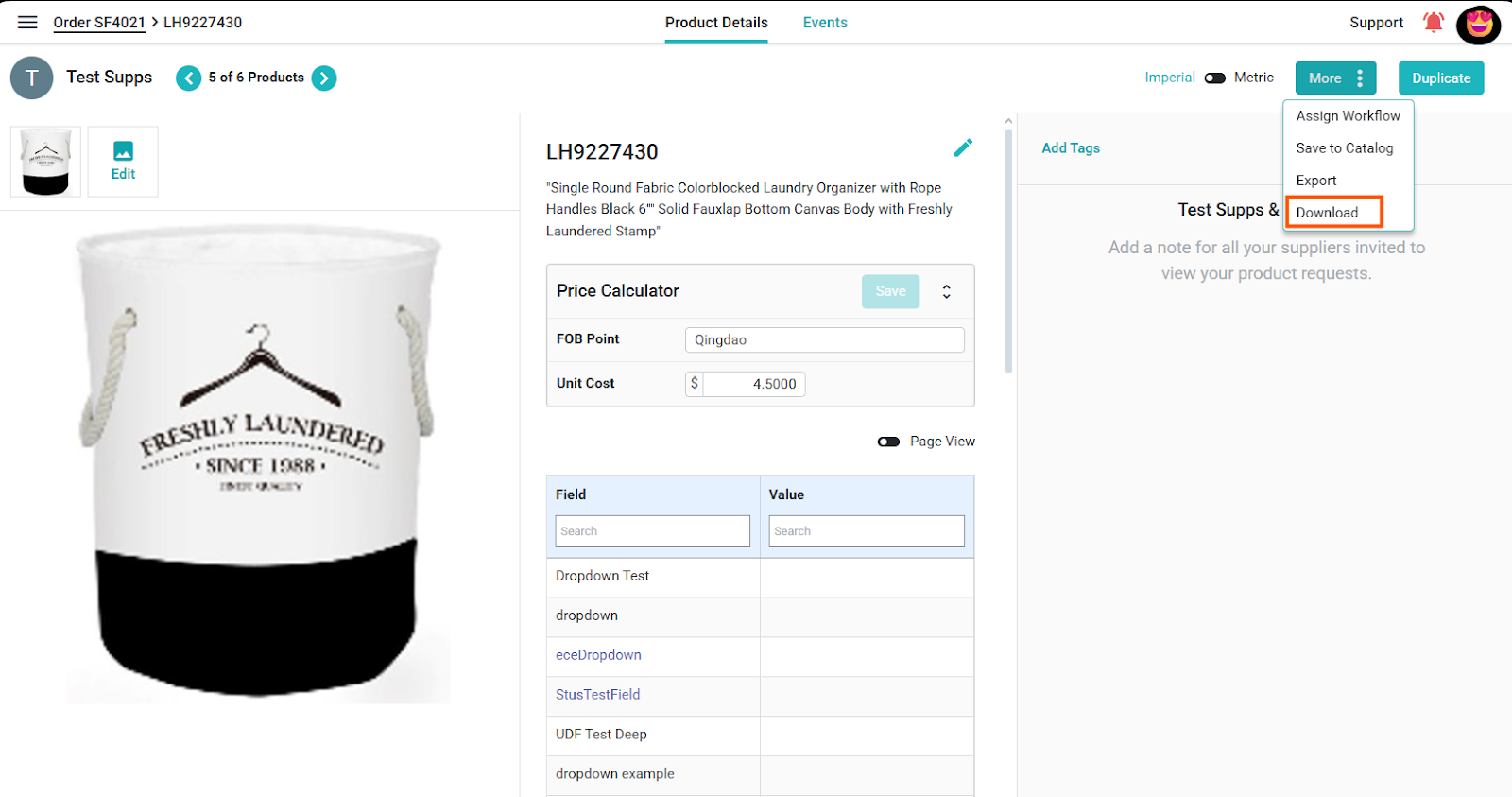
To create a Techpack download, select a Product to open the Product Details page and select Download in the upper right-hand side of the screen. Depending on where you are (Catalog vs CRM vs PLM spaces), the Download button will either be a standalone button or nested in the More dropdown menu.

OR

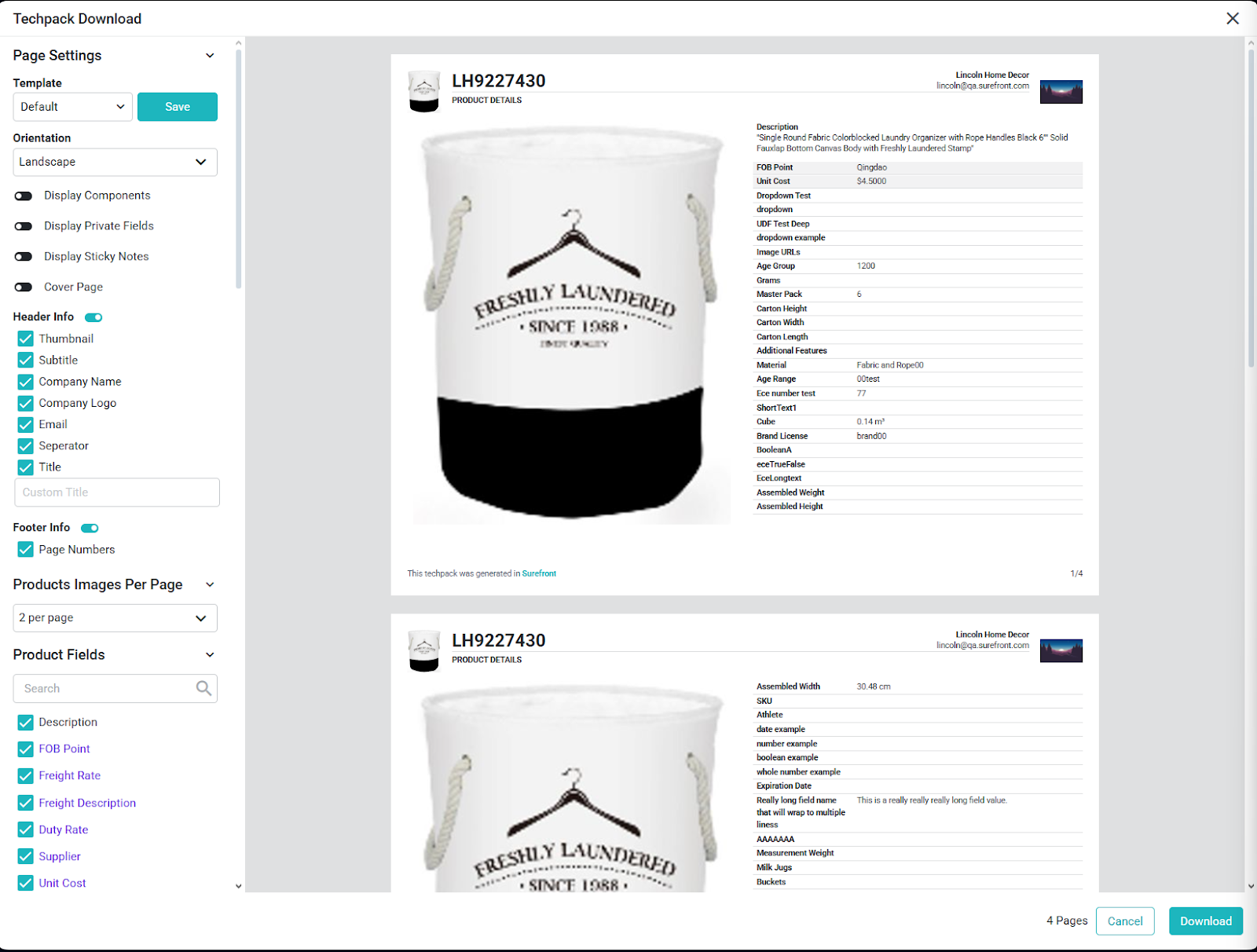
After selecting the Download button, the following screen will appear for Techpacks:

OR

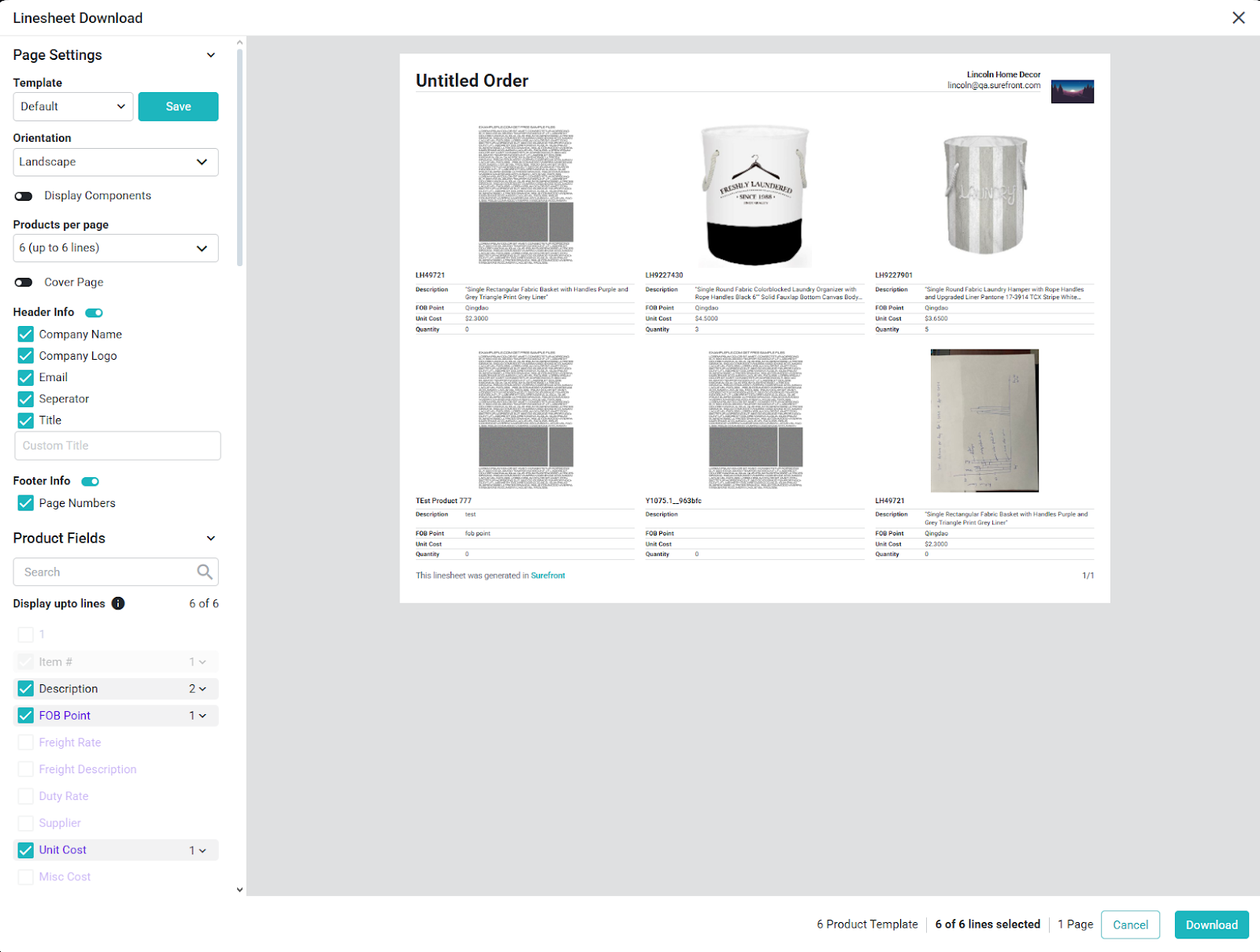
This screen will appear for Linesheet Downloads when multiple Products are selected

On the left-hand side of the screen, you will see a variety of options at your disposal:

  • Template - You can save a variety of templates to reuse again and again in Surefront

  • Orientation - Changes the orientation of the download

  • Display Components - If you have a Product with Components, you can toggle them on or off as part of the download.

  • Display Private Fields - Fields that have a purple tint to the field name are Private Fields; these can include costing/pricing information or any User Defined fields that have been toggled as Private

  • Display Sticky Notes - When reviewing product information, you can leave notes on specific fields or images. This toggle allows you to include those notes as part of the download

  • Cover Page - You can upload a custom Cover Page

  • Header Info - You can toggle this entire section on and off, to update the information being shared, and edit the Company Profile page

  • Footer Info - Also a section that can be toggled, currently includes Page Numbers

  • Products Images Per Page - Changes how many products appear (applicable to Linesheets)

  • Product Fields - Select the fields you wish to include in the download

Once the download has been configured to your needs, hit Download to complete, and if you want to save it for later, be sure to hit the Save button next to the Template selection.

Did this answer your question?