

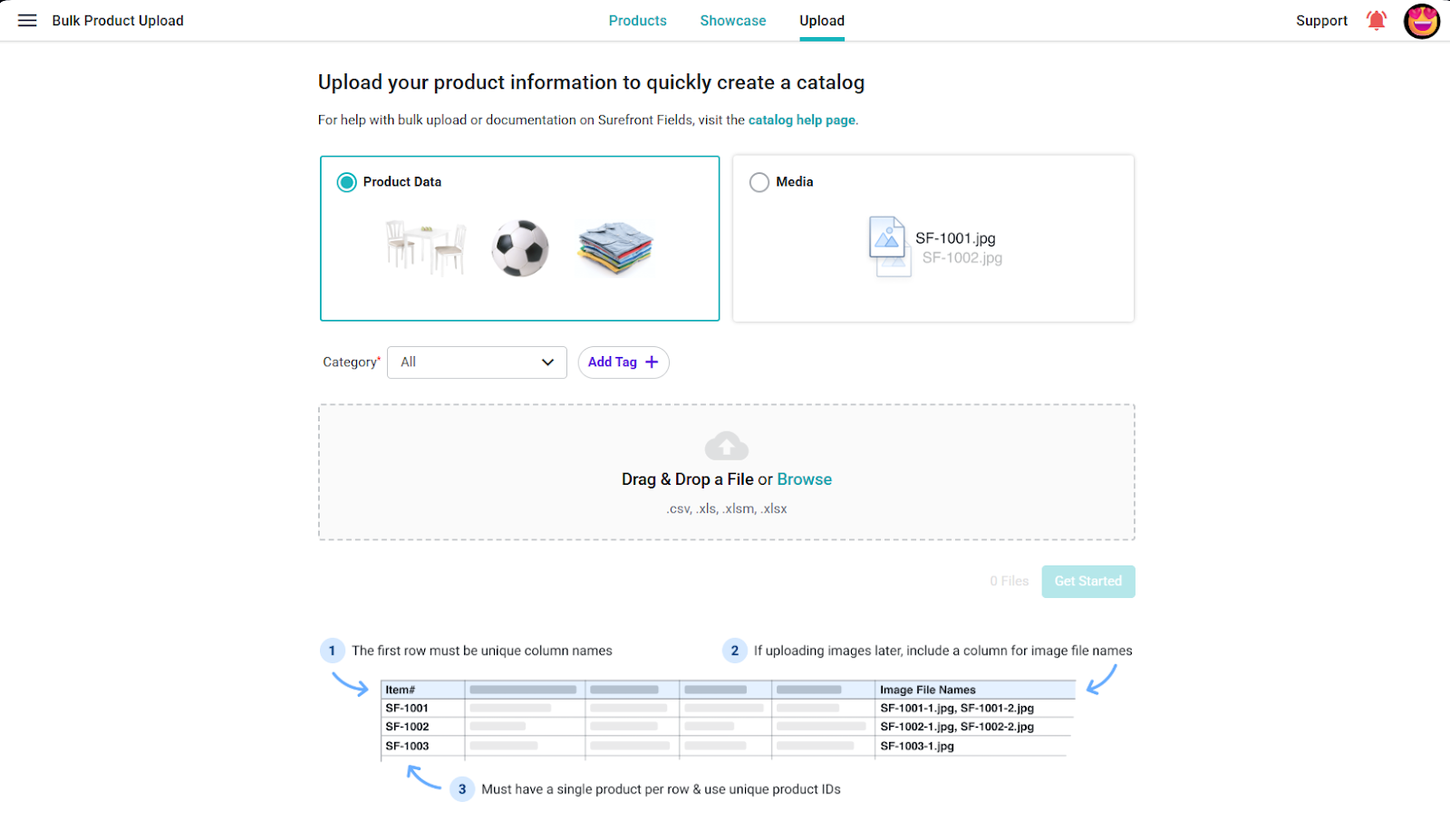
There are two types of Uploads:
Product Data, which will populate all the user fields
Media that will create a product based on the image uploaded
You can drag and drop a single file for the Product Upload or a bunch of Media files
When creating new Products its important to select the Category that the Product will belong to
For items that haven’t been sold, use the 0 - In Development Category
From here, we can also tag the items
Once the total number of files shows next to the Get Started button, then we are ready to go!
If we are doing a Product Data upload, you will see the following screen
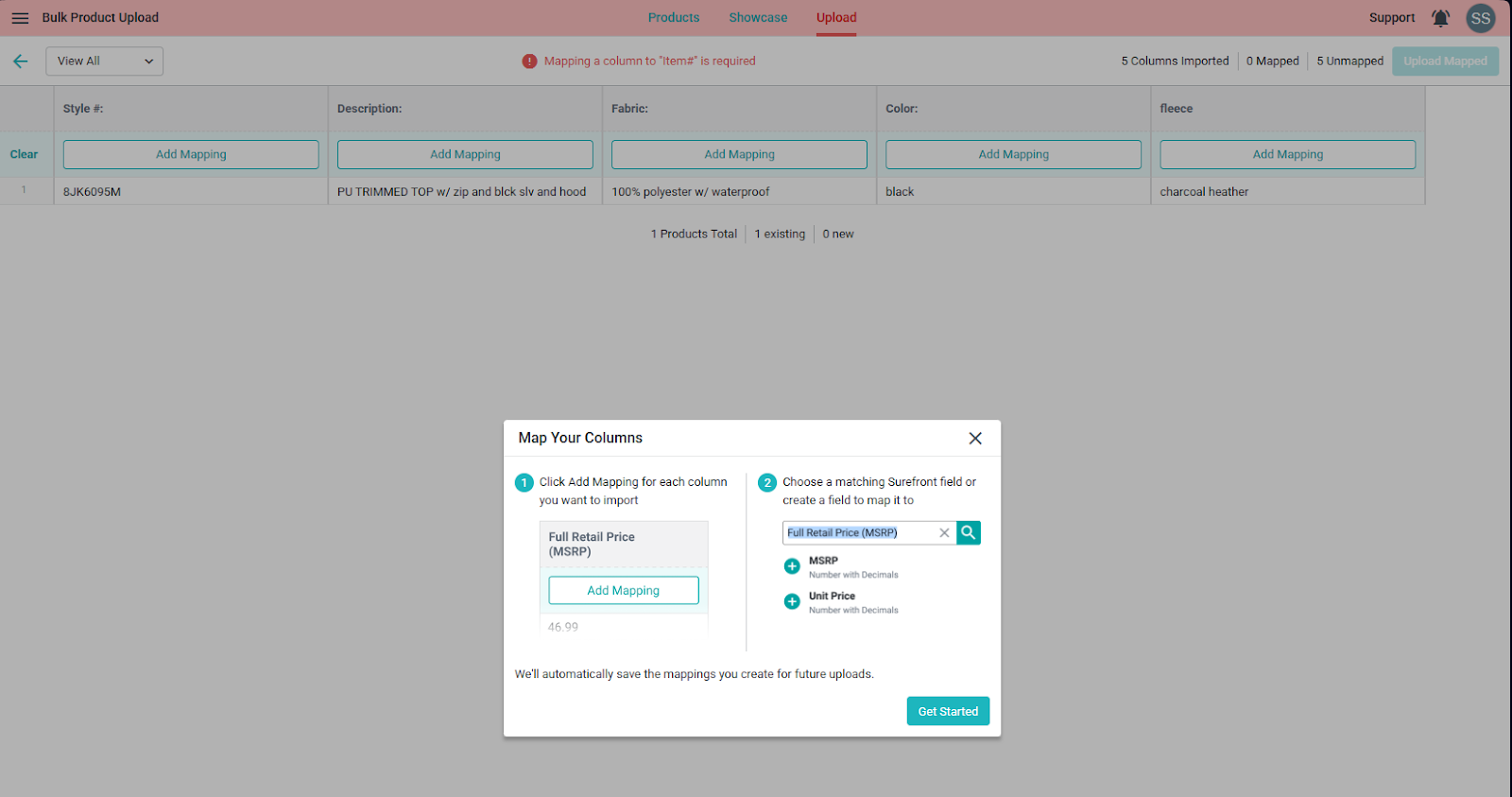
This first screen gives a quick overview of what is needed for a successful upload
Select Get Started
Then we can start mapping the fields we want to upload
If there are data issues, a red exclamation mark will appear to the right of the column where there is an issue
The only required field is the Item #, which will serve as our reference to that specific product
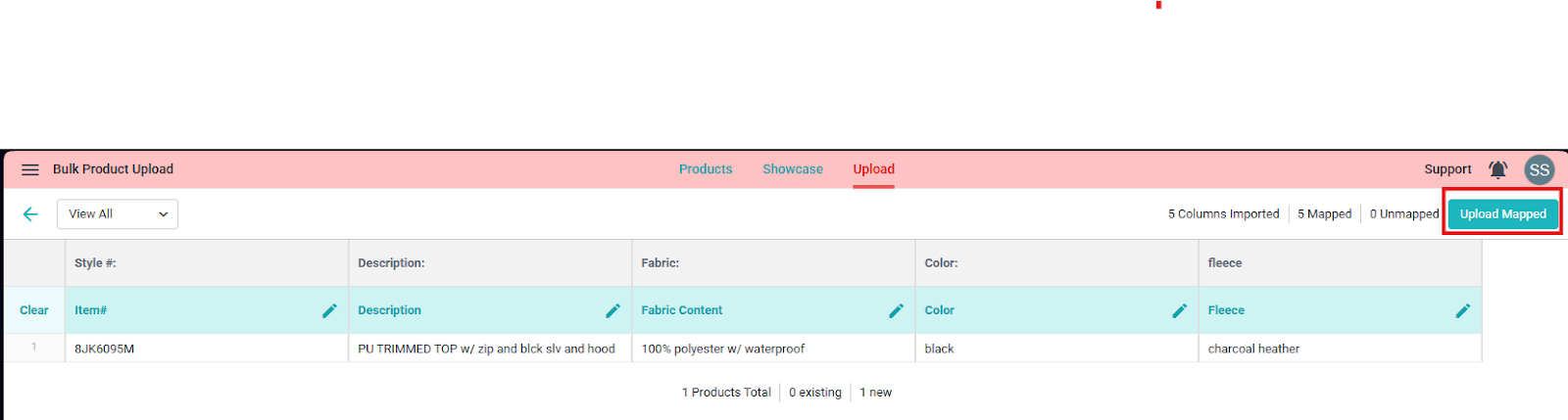
Once all the fields are mapped and there are no data issues, we can select the Upload Mapped and create the new Product/s
For Media Uploads, we can either upload to an existing item or create new items
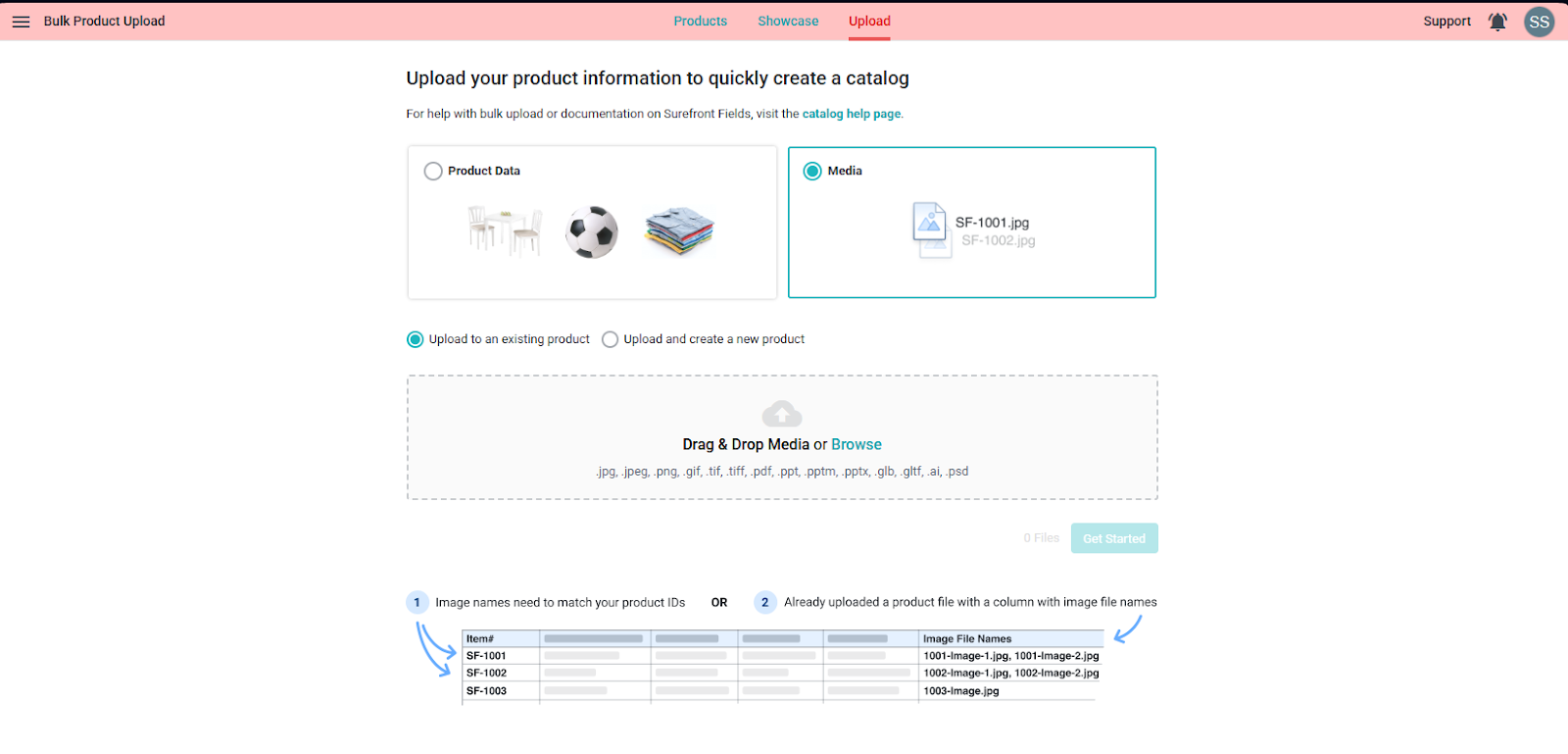
For existing products, we need to map the image to associate it with that specific product.
In the Product Data Upload, we need to have a 1:1 relationship between the Item ID and the file name
The same file can go to multiple products, but each needs to be mapped
When creating new Products its important to select the Category that the Product will belong to
For items that haven’t been sold, use the 0 - In Development Category
From here, we can also tag the items
Then drag and drop all the media images, and the products will be created with the file name
None of the Product details will be filled out when creating products this way
Tagging and Categorizing will allow us to quickly find and select the items uploaded
Being able to Bulk Select those items allows you to also Bulk Edit
If all items have the same value, Bulk Edit will allow you to quickly update all those values post-upload
