

Next, we have the User Accounts section. This section will show you the list of users, their associated emails, what user role is, the customer accounts they have access to, and what buying permissions they have.

In the right pane, there are 5 sections:
Catalog - Allows you to select what Categories the user has access to
Customers - Allows you to select which customers in the CRM the user has access to
Buying - Allows you to select what Suppliers in the PLM the user has access to
Bulk Upload - Allows you to select the permissions the user has regarding the Upload utility in the Catalog (see Bulk Product Creation Page)
Marketplace - Allows you to select the permissions the user has regarding the Marketplace (See Marketplace Page)
To add a new user, select the New User button and fill out the information. Any field with a red asterisk is required information.
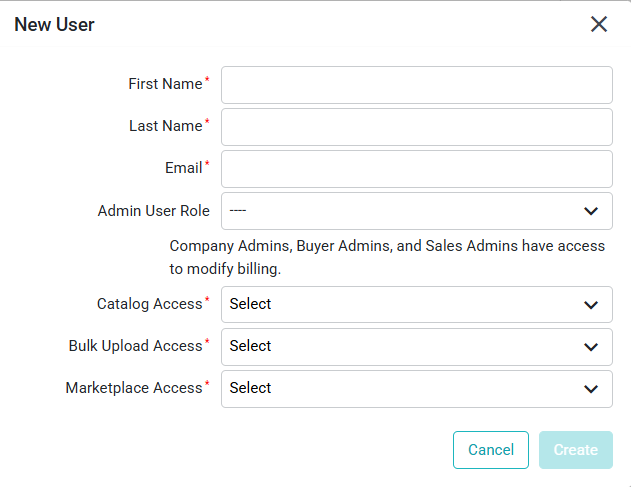
When selecting permissions, you can choose to give the user:
Complete Admin access to the software as a Company Admin
Admin access to the CRM as the Sales Admin
Admin access to the PLM as the Buyer Admin
User Role’s | Catalog (PIM) | Customers (CRM) | Buying (PLM) | Can Modify Billing |
Company Admin | X | X | X | X |
Buyer Admin | X | X | X | |
Sales Admin | X | X | X | |
Buyer & Seller Admin | X | X | X | X |
Catalog Access:
Full: Automatic access to all categories of the Catalog, no limitations based upon category or sub-category
Limited: Can limit access to specific categories of the catalog
Bulk Upload Access:
None: Cannot upload any item into Surefront
Limited: Can only upload new items. No ability to change existing items.
Full: Can upload and change any item, new or existing
Marketplace Access:
None: Cannot access or view the Marketplace
Limited: Can add new products to the Marketplace
Full: Can create and update data in the Marketplace
The user will receive an email invitation to Surefront and will set up their password.
